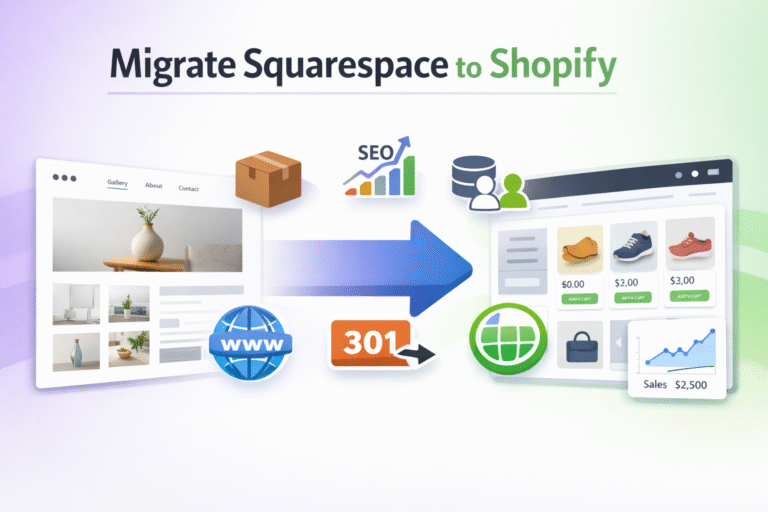
How to Transfer a Domain from Squarespace to Shopify (Step-by-Step Guide)

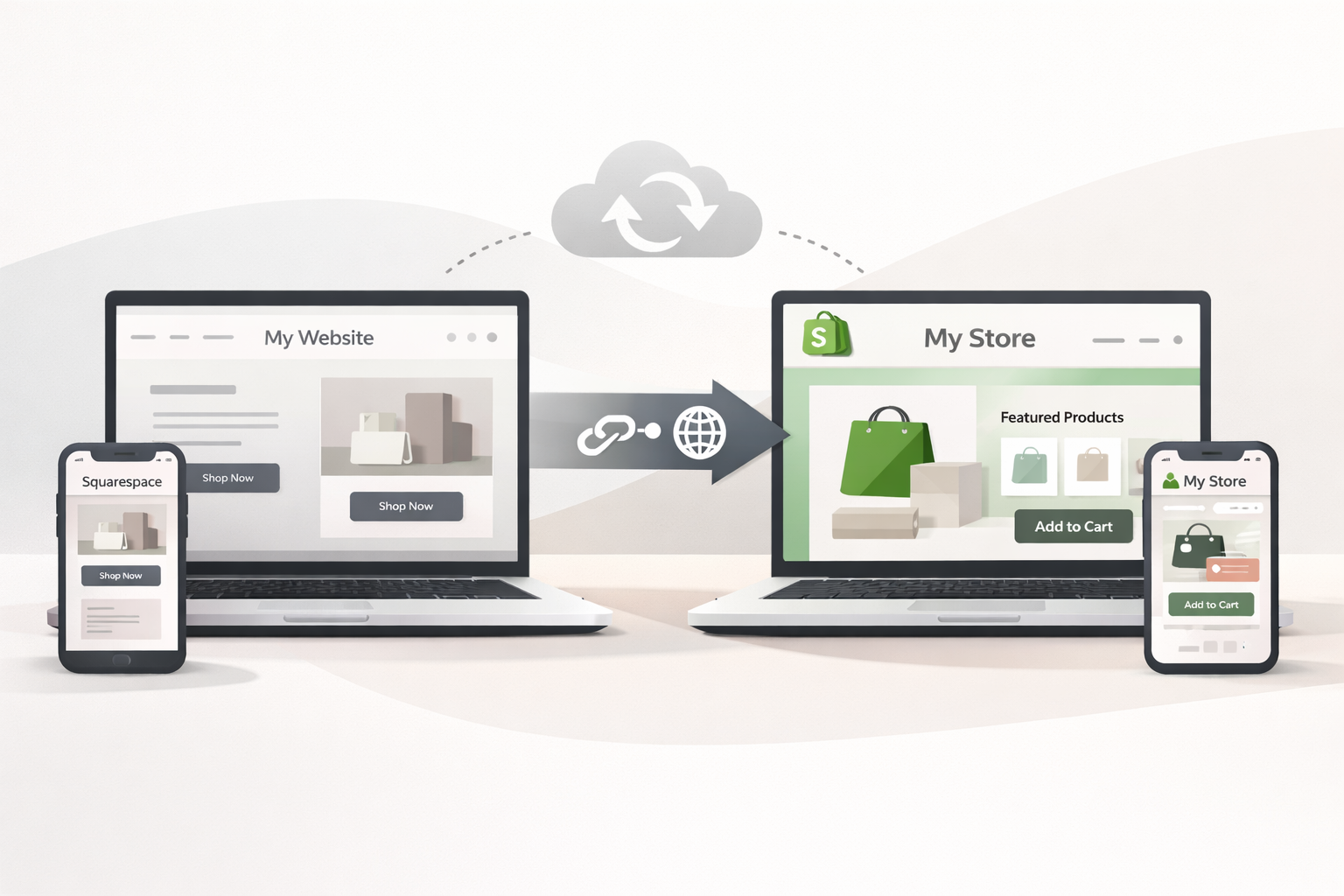
Switching ecommerce platforms is more common than you’d think. But when it comes time to move your domain, even experienced store owners start second-guessing themselves.
If you’re migrating from Squarespace to Shopify, the fear usually sounds something like this: “What if I break my site? What if I lose all my Google rankings overnight?”
transferring your domain is far less scary than it sounds. It’s mostly a matter of clicking the right buttons in the right order. This guide walks you through the entire process in plain English, no technical background required.
Quick Answer: Can You Transfer a Domain from Squarespace to Shopify?
Yes, absolutely. There are actually two ways to do it:
Option 1 – Transfer the domain to Shopify: Shopify becomes your new domain registrar. Everything lives in one place.
Option 2 – Connect the domain while keeping it at Squarespace: Your domain stays registered with Squarespace, but it points to your Shopify store.
Both options work perfectly well. The right choice depends on how much control and consolidation you want. We’ll cover both in detail below.
Before You Start the Domain Transfer
Before you touch anything, spend five minutes on these two steps. Skipping them is how people run into headaches later.
1. Check Domain Eligibility
Not every domain is ready to transfer at any given moment. Here’s what needs to be true before you can move forward:
Your domain must be at least 60 days old. This is an ICANN rule — the international body that governs domain registrations. If your domain was registered or last transferred less than 60 days ago, you’ll have to wait. There are no workarounds for this one.
Your domain must not be locked. Domain registrars (including Squarespace) apply a “transfer lock” to domains by default as a security measure. It prevents unauthorized transfers. You’ll need to disable this before initiating a transfer more on that in the steps below.
Privacy protection may need to be turned off. Many registrars offer WHOIS privacy, which hides your personal contact information from public lookup. In some cases, this can interfere with the transfer process. Squarespace handles this a bit differently than some registrars, but it’s worth checking your domain settings before you start.
A common point of confusion: the 60-day rule applies to the domain itself, not your Squarespace account. Even if you’ve had your Squarespace account for years, a recently added domain could still be ineligible.
2. Decide: Transfer vs. Connect
This is a decision worth making consciously rather than defaulting to whatever seems easiest in the moment.
Transferring the domain means Squarespace is no longer your registrar. Shopify takes over. Your domain renewals, DNS settings, and everything else get managed from your Shopify dashboard. This is the cleaner long-term setup if you’re fully committing to Shopify and don’t want to log into multiple platforms to manage your online presence.
Connecting the domain is faster and carries less risk. Your domain stays registered at Squarespace you just update the DNS records so that the domain points to your Shopify store. Squarespace handles renewals, and nothing about the registration itself changes. If anything goes wrong during the process, it’s easier to reverse.
Choose to transfer if you’re done with Squarespace entirely and want everything under one roof. Choose to connect if you want a quicker, lower-stakes option or if your domain is less than 60 days old.
How to Transfer a Domain from Squarespace to Shopify
Let’s go through the full transfer process step by step.
Step 1 – Unlock Your Domain in Squarespace
Log into your Squarespace account and navigate to the Domains section. You’ll find it under your account settings or through the main menu depending on which version of Squarespace you’re using.
Click on the domain you want to transfer. Look for a setting called Transfer Lock or Domain Lock it will be enabled by default. Toggle it off. This tells Squarespace you’re authorizing the domain to be moved elsewhere.
While you’re here, make a note of where to find your authorization code you’ll need it in the next step.
Step 2 – Get the Authorization Code (EPP Code)
The authorization code sometimes called an EPP code or auth code is essentially a password for your domain. It’s a unique string of letters and numbers that proves you’re the rightful owner and that you’ve authorized the transfer.
Without this code, Shopify (or any registrar) cannot accept the incoming transfer. It’s a security requirement, not a bureaucratic one.
In Squarespace, after unlocking the domain, you should see an option to get the authorization code or send it to your email. The code will typically be sent to the email address associated with your Squarespace account. Check your inbox and keep the code handy — you’ll paste it into Shopify shortly.
Step 3 – Start the Transfer in Shopify
Now head over to your Shopify admin. Go to Settings → Domains and click Transfer Domain.
Shopify will ask you to enter the domain name you want to transfer. Type it in exactly as it appears (for example, yourstore.com), then enter the authorization code you received from Squarespace.
Shopify will verify the code and check that the domain is eligible for transfer. If everything checks out, you’ll be prompted to confirm the transfer and pay the transfer fee (typically this covers one year of domain registration with Shopify).
Step 4 – Approve the Transfer Request
After initiating the transfer from Shopify’s side, you’ll receive an email usually at the address associated with the domain’s registration asking you to confirm the transfer.
Click the confirmation link in that email. Some registrars require you to also log in to the losing registrar (Squarespace, in this case) to approve the outgoing transfer.
Once approved, the transfer can take anywhere from a few hours to up to 7 days to complete. During this time, your domain will continue to work normally there’s no downtime to worry about. When the transfer is complete, you’ll receive a confirmation email from Shopify.
How to Connect Your Domain Instead (Simpler Option)
If you’d rather keep your domain at Squarespace and simply point it to Shopify, here’s how to do that.
Step 1 – Add Your Domain in Shopify
In your Shopify admin, go to Settings → Domains and click Connect existing domain. Enter your domain name and click Next. Shopify will show you the DNS records you need to update — keep this screen open, you’ll need those values in the next step.
Step 2 – Update DNS Records in Squarespace
Go to your Squarespace Domains panel, select your domain, and find the DNS Settings or Advanced DNS section.
You’ll need to update two records:
A Record: This points your domain (yourstore.com) to Shopify’s servers. Shopify’s IP address for this is 23.227.38.65. Set the A Record for the root domain (@) to this IP.
CNAME Record: This handles the “www” version of your domain. Set the CNAME for “www” to shops.myshopify.com.
If you’re not sure what A Records and CNAMEs are think of them as forwarding instructions. The A Record tells the internet where to find your website when someone types your domain directly. The CNAME does the same for the www version.
Step 3 – Verify the Connection
Back in Shopify, click Verify connection. Shopify will check whether the DNS records have been updated correctly.
Here’s the part where patience comes in: DNS propagation the time it takes for these changes to spread across the internet can take anywhere from a few minutes to 48 hours. During this window, some visitors may see your old Squarespace site and others may see your new Shopify store, depending on their location and internet provider.
This is completely normal. Once propagation is complete, your domain will consistently point to Shopify.
Will You Lose SEO or Traffic?
This is the question that keeps people up at night, so let’s address it directly.
Transferring your domain does not cause SEO loss. Your domain is your domain moving it between registrars doesn’t change how Google sees it. The domain’s age, authority, and history all stay intact.
What can affect SEO is the platform migration itself, not the domain transfer. If your URL structure changes (for example, Squarespace used /blog/post-name and Shopify uses /blogs/news/post-name), Google has to reindex those new URLs. During that process, you might see a temporary dip in rankings.
The way to protect yourself is with redirects. Shopify has a built-in URL redirect feature use it to map your old Squarespace URLs to their new Shopify equivalents. This tells Google where the content has moved and preserves the ranking equity those pages had built up.
The key things to do before going live on Shopify: audit your most important pages, note their current URLs, and set up redirects in Shopify before you make the switch. Don’t leave this until after.
Common Problems and Fixes
Even when you follow every step correctly, things occasionally go sideways. Here’s how to troubleshoot the most common issues.
Domain Not Transferring
If Shopify is rejecting your transfer or the process seems stuck, the most likely causes are a domain that’s still locked, an incorrect or expired authorization code (these do expire — if it’s been a few days, request a new one from Squarespace), or the 60-day ICANN restriction. Double-check all three before assuming something more complex is wrong.
Website Not Loading After Transfer or Connection
If your site isn’t loading after you’ve made the changes, the most common culprit is DNS propagation it simply hasn’t finished yet. Give it a few hours before troubleshooting further.
If it’s been more than 48 hours, double-check that your DNS records are entered correctly. A single typo in an IP address or CNAME value will break things completely. Also try clearing your browser cache or checking the site from a different device or network sometimes your local cache is showing you a stale result even after everything has updated correctly.
Should You Transfer the Domain to Shopify?
Here’s an honest take rather than a one-size-fits-all answer.
The case for transferring: If you’re committing to Shopify for the long haul, centralizing everything in one dashboard genuinely simplifies your life. One renewal reminder, one place to manage DNS, one login. Over time, that convenience adds up.
The case for not transferring: If you’re still testing Shopify, or if you have other websites on the same domain (like a Squarespace blog or portfolio), keeping the domain at Squarespace gives you more flexibility. The connected domain option works just as well for running your Shopify store there’s no performance difference.
Transfer makes the most sense if you’re fully migrating to Shopify and want a clean break from Squarespace. Connecting is the better move if you want less risk, a faster setup, or you’re not 100% sure Shopify is your permanent home yet.
Wrapping Up
Transferring a domain from Squarespace to Shopify sounds intimidating, but once you understand what you’re actually doing unlocking a domain, passing over an authorization code, updating some DNS records it becomes a lot less mysterious.
The steps in this guide cover both paths: full transfer and DNS connection. Either way, your domain stays yours, your SEO history stays intact, and your store keeps running.
If you’re feeling uncertain, start with the connect option. It’s reversible, it’s faster, and it works just as well. You can always do a full transfer later once you’re settled into Shopify and confident it’s where you’re staying.
The only way to truly mess this up is to rush through it without reading the steps. You’ve already avoided that so you’re ahead of most people.
FAQs
How long does domain transfer take?
A domain transfer from Squarespace to Shopify usually takes 5 to 7 days.
In some cases, it can complete faster if you approve the confirmation email immediately. ICANN rules require a waiting period for security reasons, so delays are normal.
Can I transfer a Squarespace domain immediately?
No. Your domain must be:
At least 60 days old
Not transferred within the last 60 days
Unlocked
This 60-day rule applies to all domain registrars under ICANN regulations.
Is transferring better than connecting?
It depends on your goal.
Transfer is better if:
You plan to use Shopify long term
You want everything managed in one dashboard
Connecting is better if:
You want a faster setup
You prefer keeping your registrar separate
You want lower risk during migration
For most beginners, connecting first is the safer move.
Will my emails stop working?
They can if you don’t update your MX records properly.
If you’re using professional email (like Google Workspace), make sure the MX records stay unchanged during DNS updates.
A domain transfer itself doesn’t automatically break email incorrect DNS changes do.
Can I reverse the transfer?
Once the transfer is completed, you cannot instantly reverse it.
You would need to wait another 60 days before transferring the domain again to another registrar.
Do I need to move my website before transferring the domain?
Yes. You should fully set up your Shopify store before transferring or connecting the domain.
If you transfer first and your new store isn’t ready, visitors may see errors or a blank page.
Best practice:
Build your store
Test everything
Then switch the domain
Will I lose SEO rankings after transferring my domain?
No transferring the domain itself does not affect SEO.
However, moving from Squarespace to Shopify can impact SEO if:
URL structures change
Redirects aren’t set up
Meta data isn’t migrated
Always set up 301 redirects inside Shopify to protect rankings.
Does transferring a domain cost money?
Yes. Shopify typically charges a one-year renewal fee during transfer.
You are not paying twice the domain expiry date is extended by one year after transfer.
What happens to SSL during the transfer?
During transfer or DNS changes, SSL may show as “pending” for a few hours.
Shopify automatically provisions free SSL once the domain is connected properly. Temporary security warnings during propagation are normal.
Can I transfer multiple domains from Squarespace to Shopify?
Yes. You can transfer multiple domains, but each must:
Be unlocked
Have its own authorization code
Be transferred separately
If you manage several domains, consider transferring them one at a time to avoid confusion.