How to Make Products View-Only on Shopify (Disable Buying Guide)

Many Shopify store owners eventually run into this situation: you want customers to see your products, but not buy them. Maybe you’re building a catalog, running a wholesale store, showcasing out-of-stock items, or gearing up for a product launch. Whatever the reason, the problem is the same and Shopify doesn’t make the answer obvious.
Shopify has no built-in “view-only” toggle. That’s exactly why this topic confuses so many beginners. In this guide, I’ll walk you through every practical way to make products view-only on your Shopify store, without breaking anything in the process.
Can you make products view-only on Shopify?
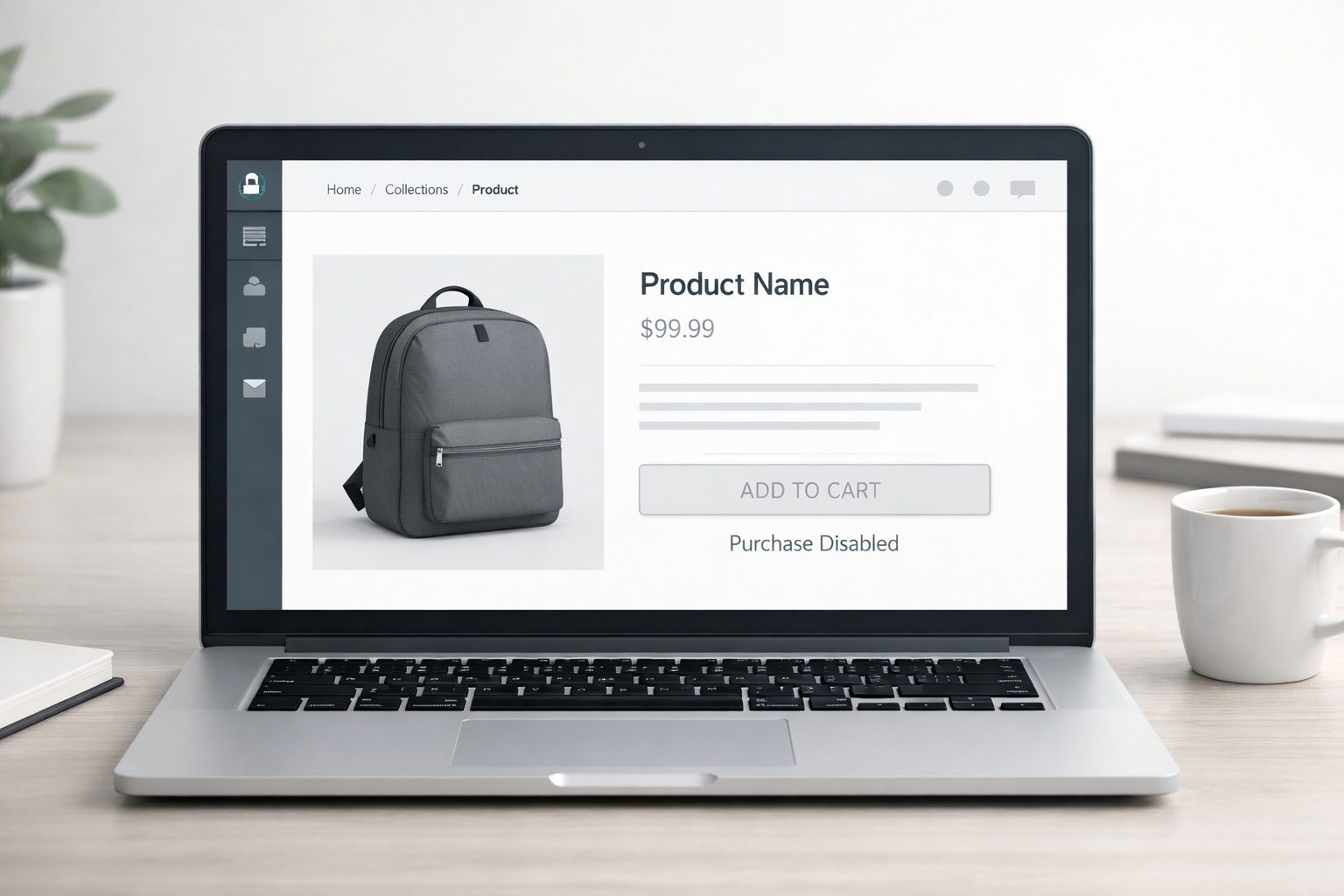
Yes. While Shopify doesn’t offer a native view-only option, you can easily achieve this by removing purchase functionality. The most common methods include hiding the Add to Cart button, disabling checkout options, controlling sales channels, or using catalog-mode apps.
What “View-Only Products” Actually Means
Before diving in, it’s worth clearing up a common confusion. View-only products are visible to customers but not purchasable. That sounds simple, but a lot of store owners mix this up with other things.
View-only is not the same as a draft product, which is completely hidden from your storefront. It’s not the same as an out-of-stock product, which still shows a “Sold Out” label and technically allows wishlisting or notifications. And it’s not the same as a hidden product, which is removed from search and collections entirely.
View-only means the product page exists, looks great, and can be browsed the customer just can’t add it to their cart or complete a purchase.
This matters in several real scenarios. Some businesses run catalog-style stores where they showcase what they offer but handle orders offline or through a sales rep. Wholesale and B2B stores often want buyers to browse products before logging in or submitting an inquiry. Pre-launch stores want to build anticipation without opening up checkout too early. And many stores keep discontinued or out-of-stock product pages live to preserve their SEO ranking while preventing frustrating purchases.
Why Store Owners Need View-Only Products
Catalog-Style Stores
Not every business sells directly through their website. Manufacturers, distributors, and service-based product companies often want customers to browse their full range and then reach out to place an order. A view-only setup lets them present a professional product showcase without a live checkout.
Wholesale and B2B Models
In wholesale stores, pricing is often negotiated or revealed only after a buyer logs in or submits a request. Showing products without prices or purchase options keeps things professional and prevents retail customers from accessing trade pricing.
Pre-Launch and Coming Soon Products
Building hype before a launch is a smart marketing move. You can publish product pages, run ads, and drive traffic to them weeks before the launch date, as long as customers can’t actually check out until you’re ready.
Out-of-Stock and Discontinued Items
Removing product pages entirely can hurt your SEO. If a page has built backlinks and search traffic over time, deleting it throws that value away. Keeping the page live in view-only mode preserves your rankings while being honest with customers about availability.
Remove the Add to Cart Button
This is the most common approach store owners take, and for good reason. It’s straightforward and works well for simple stores that don’t need a complicated setup.
Every Shopify theme controls the Add to Cart button through its template files or theme editor. By removing or hiding that button, you effectively prevent customers from starting the purchase process at all. No cart, no checkout, no purchase.
When This Method Works Best
This approach is ideal for smaller stores, stores with a limited product range, or anyone comfortable making minor theme edits. It gives you clean, minimal control without relying on third-party tools.
Limitations to Know
The catch is that simply removing the Add to Cart button doesn’t fully block checkout. If you have quick-buy enabled, variant selectors, or dynamic checkout buttons, customers might still find a way to purchase. This method needs to be done thoroughly to actually work.
Hide Buy Buttons and Dynamic Checkout
A lot of store owners make the mistake of removing the Add to Cart button and calling it done. But Shopify actually renders several different purchase buttons depending on your theme and settings.
There’s the standard Add to Cart button, the Buy Now button, and dynamic checkout buttons (like the Shop Pay or PayPal shortcuts that appear directly on product pages). If you only hide one and leave the others active, customers can still complete a purchase.
To truly make a product view-only through button removal, you need to address all three. This is one of the most commonly overlooked steps in the whole process.
Use Product Availability and Sales Channels
Here’s a smarter strategy that doesn’t require touching your theme at all. Instead of modifying the design, you restrict which sales channels a product is available on.
Removing the Online Store Channel
Every Shopify product can be assigned to specific sales channels. If you remove a product from the Online Store channel, it won’t appear on your storefront at all. But you can keep it visible in other channels, such as a point-of-sale system or a wholesale portal.
Catalog-Only Store Strategy
For businesses that want their entire store to be a catalog with no checkout, removing the Online Store channel from all products and building a custom storefront (or using a dedicated catalog app) gives you complete control. Customers can browse, but no purchase path exists on the frontend.
Set Products as Out of Stock
This is what I’d call a soft view-only approach. It’s not technically the same thing, but for many stores it accomplishes a similar goal without any code changes.
Advantages
Setting inventory to zero requires no technical knowledge. The product page stays live, stays indexed by Google, and customers can still find and view it. It’s the fastest way to temporarily disable purchasing.
Disadvantages
The obvious downside is that customers see a “Sold Out” label, which can hurt trust and conversion psychology if you plan to re-enable purchasing later. It also doesn’t look professional for catalog or showcase stores where “sold out” doesn’t make contextual sense.
Hide Prices for View-Only Products
Sometimes the goal isn’t just disabling the cart — it’s hiding pricing altogether. This is especially common in wholesale, quote-based, or luxury retail contexts.
When to Hide Prices
Wholesale stores often want buyers to log in before seeing trade prices. Quote-based businesses don’t list prices at all, preferring to send custom proposals. Luxury brands sometimes hide pricing to maintain exclusivity and push customers toward a direct consultation. In all these cases, hiding the price can matter more than disabling the cart button.
Use Shopify Apps for Catalog Mode
If your store is more complex, or if you’re not comfortable making theme changes, there’s an entire category of apps built specifically for this problem. Catalog mode apps and wholesale apps can disable Add to Cart, hide prices, replace purchase buttons with inquiry forms, and enforce login-only pricing, all from a dashboard without touching code.
The right app depends on a few factors. How many products do you have? Do you need per-product control or store-wide settings? Do you need customers to log in to see prices? Is this a temporary setup or a permanent business model?
For simple use cases, a free or low-cost app is usually enough. For large B2B or wholesale operations, it’s worth investing in a purpose-built solution.
Best Strategy Based on Your Store Type
Small Stores
If you have a handful of products and just want to remove purchase functionality, a simple theme edit to hide the cart button is all you need. No apps, no complex setup.
Wholesale and B2B Stores
Price hiding combined with login-based rules is the right approach here. Use an app designed for wholesale to control who sees what, and replace purchase buttons with inquiry or quote request forms.
Large Catalog Stores
App-based catalog mode is the most scalable solution. It gives you centralized control, consistent behavior across hundreds or thousands of products, and a cleaner customer experience than manual edits could ever achieve.
Pre-Launch Stores
A combination of theme-level button hiding and Shopify’s scheduling or automation features works well here. Publish the product page, keep it view-only, and switch it to purchasable when you’re ready to go live.
Common Mistakes Store Owners Make
The single most common mistake is removing only the Add to Cart button while leaving dynamic checkout buttons active. Customers can still purchase through Shop Pay shortcuts or other accelerated checkout options if those aren’t also disabled.
Another frequent error is using draft products when view-only is what’s actually needed. Draft products are hidden from customers entirely, which is the opposite of the goal.
Some store owners also accidentally use the “hide product” approach without realizing it removes the page from search indexing, which destroys any SEO value the page had built up.
And finally, a lot of stores forget to test after making changes. Always browse your own store as a guest after any view-only setup to confirm the purchase path is actually blocked.
SEO Considerations for View-Only Products
This is one of the more underappreciated parts of the whole topic. How you implement view-only mode has real consequences for your search rankings.
Keeping product pages live and indexed is almost always the right call. Even if a product is discontinued or unavailable, that page may have backlinks, search traffic, and ranking history worth preserving. Deleting it or hiding it from search throws all of that away.
Out-of-stock products in view-only mode can stay indexed without any SEO penalty, as long as the page still has quality content. Thin pages with just a title and a blank purchase area are more of a risk. Adding a description, specs, related products, or an inquiry form gives the page enough substance to remain valuable in search.
The worst outcome SEO-wise is making a product hidden or password-protected, which signals to search engines that the content shouldn’t be indexed at all.
Wrapping Up
Making products view-only on Shopify is less about flipping a single switch and more about choosing the right strategy for your specific store model. A small catalog store has different needs than a large wholesale operation, and the right approach reflects that.
The good news is that most stores don’t need anything complicated. Start with the simplest method that fits your situation, test it thoroughly as a customer would experience it, and layer in additional tools only if your needs grow from there.
FAQs
Can customers still buy view-only products?
It depends on the method you use. If you’ve removed all purchase buttons including dynamic checkout options, and restricted the sales channel, then no. If you’ve only hidden the Add to Cart button, there may still be pathways to checkout that you haven’t addressed.
Is view-only mode bad for SEO?
Not if done correctly. Keeping product pages live and indexed is actually good for SEO. The risk comes from hiding pages entirely or creating thin, low-quality content on pages that no longer have purchase functionality.
Should I use apps or theme edits?
For simple stores, theme edits are usually enough. For wholesale, B2B, or large catalog stores where you need consistent behavior across many products with minimal maintenance, an app is the better long-term choice.
Can I make only specific products view-only?
Yes, absolutely. Most methods, whether theme-based or app-based, allow you to apply view-only settings to individual products rather than your entire store. This gives you the flexibility to keep some products purchasable while showcasing others as catalog items.