How to Migrate from Squarespace to Shopify (Step-by-Step Complete Guide)

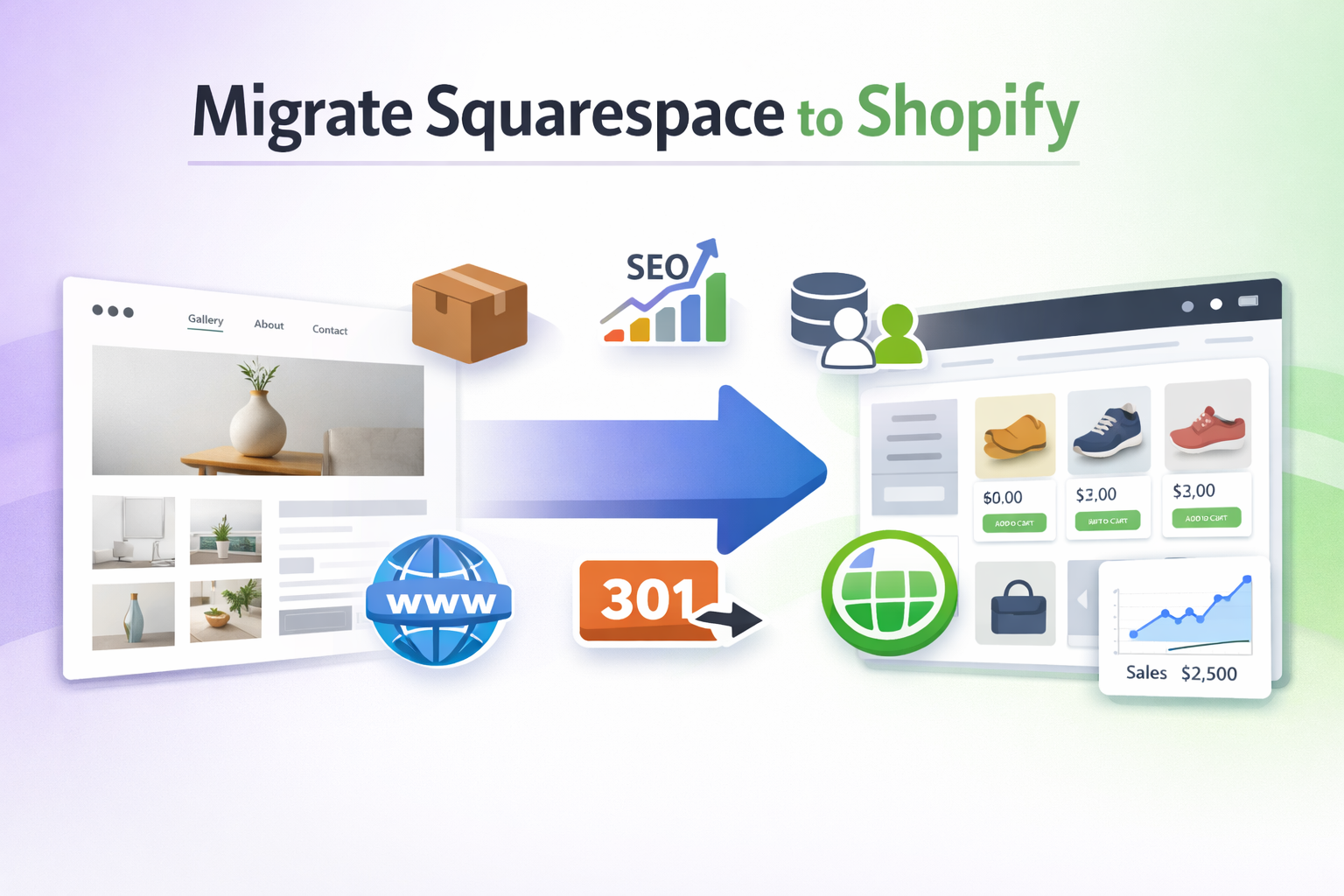
Yes, you can migrate from Squarespace to Shopify. The process involves exporting products and content from Squarespace, importing them into Shopify, setting up redirects, reconfiguring your design, and testing everything before going live. If done correctly, you won’t lose SEO rankings, products, or customer data.
Thousands of store owners make the switch from Squarespace to Shopify every year, and for good reason. While Squarespace is a beautiful website builder that makes it easy to create a polished online presence, it was never built with serious ecommerce in mind. Shopify, on the other hand, was designed from the ground up to help businesses sell online at any scale.
If you’re running a growing online store, you may have already hit the ceiling on what Squarespace can offer. Maybe checkout customization is limited, your inventory is getting complex, or you need apps that simply don’t exist in the Squarespace ecosystem. Whatever your reason, migrating to Shopify is a smart move for ecommerce-focused businesses.
That said, the migration process comes with real concerns. Business owners worry about losing their SEO rankings, experiencing a traffic drop, breaking links, dealing with design changes, and sorting out email and domain issues. This guide addresses all of that. By the time you finish reading, you’ll have a clear, step-by-step plan to migrate safely without losing what you’ve built.
Squarespace vs Shopify: Why Businesses Switch
Ecommerce Capabilities
Squarespace works well for simple stores, but it has hard limits when your business grows. Shopify offers advanced inventory management, a wide range of payment gateways, full checkout customization, built-in abandoned cart recovery, and access to thousands of apps that extend your store’s functionality. If you’re comparing the two platforms side by side, Squarespace handles design beautifully while Shopify handles selling powerfully.
Scalability
As your store grows, you need tools that grow with it. Shopify supports multi-location inventory, multi-currency selling, and global commerce features that Squarespace simply can’t match. If you’re planning to expand into new markets or manage stock across multiple warehouses, Shopify is built for that.
App Ecosystem
The Shopify App Store has over 8,000 apps covering everything from email marketing and loyalty programs to shipping automation and reviews. Squarespace has a much smaller selection of integrations. This gap becomes a serious limitation when you’re trying to optimize and scale your operations.
SEO Flexibility
Both platforms support basic SEO, but Shopify gives you more control. You can customize URL structures more freely, manage advanced metadata, and maintain a clean blog structure. Squarespace’s URL patterns don’t always align with what Shopify produces, which is why redirect planning is so important during migration.
Things to Check Before Migrating
Audit Your Existing Website
Before touching anything, take stock of what you have. Count your products, blog posts, and pages. Pull your traffic data from Google Analytics to identify your top traffic sources. Use a tool like Ahrefs or Google Search Console to find your most valuable backlinks and highest-ranking URLs. This list becomes your migration blueprint.
Backup Everything
Never start a migration without a full backup. Export your product CSV from Squarespace, download your order history, save your customer data, copy all blog content into a document, and download every image you’ve uploaded. Store these files somewhere safe before you begin.
SEO Audit
Export your current sitemap and create a list of every indexed page. Identify your highest-ranking URLs and flag them in a redirect spreadsheet. This sheet will be critical when you get to the redirect step. The goal is to make sure every important URL on Squarespace has a matching destination on Shopify.
Choose the Right Shopify Plan
Shopify offers several plans ranging from Basic to Advanced, plus Shopify Plus for enterprise stores. Choose based on your current revenue, team size, and feature needs. Most small to mid-size stores start on the Basic or Shopify plan and upgrade as they grow. You can review the current Shopify plans on their website to find what fits your business.
Step-by-Step: How to Migrate from Squarespace to Shopify
Set Up Your Shopify Store
Start by creating your Shopify account. During setup, choose a temporary theme so you have something to work with, and configure your basic store settings including currency, shipping zones, and tax rules. Don’t worry about perfecting the design at this stage. Focus on getting the structure in place first.
Export Data from Squarespace
Squarespace allows you to export products via CSV, blog posts in XML format, and basic page content. Customer data exports are limited, and some content may require manual copying. Go to your Squarespace dashboard, navigate to Settings, and look for the Export option. Download everything available and keep it organized by category.
Import Products into Shopify
Before uploading your product CSV to Shopify, you need to format it to match Shopify’s required column structure. Shopify has a product CSV template you can download from the admin panel. Map your Squarespace columns to the correct Shopify fields. After uploading, review each product carefully and check variants, SKUs, pricing, images, and collections to make sure everything imported correctly.
Migrate Pages and Blog Content
For blog posts, Squarespace exports in XML format. You may be able to import this through a WordPress intermediate step, or you can copy posts manually. Either way, you’ll need to recreate your About page, Contact page, and policy pages directly in Shopify. Take this opportunity to clean up formatting and optimize each page with proper headings and metadata.
Migrate Customers and Orders
Shopify accepts customer imports via CSV. Format your Squarespace customer export to match Shopify’s customer CSV template and upload it through the admin panel. For order history, third-party migration tools like Cart2Cart or LitExtension can handle this more reliably than manual CSV uploads. Once migration is complete, consider sending your customers an email letting them know about the new store and any changes to their account access.
Design and Theme Setup
Now it’s time to build your Shopify storefront. Browse the Shopify Theme Store for a theme that fits your brand. Free themes like Dawn are solid starting points. Once you’ve chosen a theme, customize it to match your existing branding including your logo, fonts, and colors. Test the design thoroughly on mobile before moving on, since a large portion of your traffic likely comes from mobile devices.
URL Redirects
This is the most important step for protecting your SEO. Squarespace and Shopify use different URL structures. A product that lived at /shop/product-name on Squarespace will live at /products/product-name on Shopify. A blog post at /blog/post-name becomes /blogs/news/post-name. Every one of these changes needs a 301 redirect so visitors and search engines land in the right place.
In Shopify, go to Online Store, then Navigation, then URL Redirects. You can add redirects one by one or upload them in bulk using a CSV file. Use the redirect spreadsheet you built during your SEO audit and create a redirect for every important URL. Don’t skip this step. Missing redirects are the number one cause of traffic loss after migration.
Domain Transfer or Connect Your Domain
If your domain is registered through Squarespace, you can transfer it to Shopify or to a third-party registrar like GoDaddy. If your domain is already on a third-party registrar, you simply need to update your DNS settings. Point your A record to Shopify’s IP address and update your CNAME to point to your Shopify storefront. Shopify provides clear DNS instructions in your admin panel under Domains.
Set Up Payments and Shipping Again
Your payment gateway settings don’t carry over from Squarespace. Go into your Shopify admin and reconnect your preferred payment processor. Shopify Payments is the easiest option if it’s available in your country. Reconfigure your shipping zones, rates, and tax rules to match what you had before. Then run a test transaction to confirm everything is working correctly.
Test Everything Before Going Live
Before flipping the switch, run through a full test of your store. Add a product to the cart and complete a checkout. Confirm that order confirmation emails are sending correctly. Test on both desktop and mobile. Run a speed test using Google PageSpeed Insights. Check for broken links using a tool like Screaming Frog or Broken Link Checker. Only go live once everything passes.
SEO After Migration
Submit Your New Sitemap
As soon as your Shopify store is live, log into Google Search Console and submit your new sitemap. Shopify automatically generates a sitemap at yourstore.com/sitemap.xml. Submitting it tells Google to start crawling your new URL structure right away.
Monitor Rankings
For the first 30 to 60 days after migration, keep a close eye on your keyword rankings and organic traffic. Some fluctuation is normal during this period. Use Google Search Console and a rank tracking tool to spot any significant drops early so you can investigate the cause.
Fix Crawl Errors
Check Google Search Console regularly for 404 errors and redirect loops. A 404 error means a page was requested but not found, which usually means a redirect is missing. A redirect loop means two URLs are redirecting to each other indefinitely. Fix these as quickly as possible to avoid losing ranking signals.
Keep Metadata the Same
Where possible, carry over your existing page titles and meta descriptions into Shopify. Consistent metadata reduces the signal disruption that search engines experience during a migration. If you’ve optimized your metadata well on Squarespace, that work should transfer directly.
Common Migration Mistakes to Avoid
The most damaging mistake is skipping 301 redirects. Without them, every changed URL becomes a dead end for both users and search engines. Forgetting to check product variants after import is another common issue, as pricing and inventory can get scrambled during CSV formatting. Ignoring internal links means pages may point to old Squarespace URLs that no longer exist. Not testing the checkout before launch can mean losing real sales from day one. Launching without a backup leaves you with no safety net if something goes wrong. Losing blog formatting during import can make posts look unprofessional and confuse readers. And changing your URL structure carelessly, beyond what migration requires, adds unnecessary redirect complexity.
Manual Migration vs Migration Apps
Manual Migration
Doing the migration yourself is free and gives you full control over every detail. It’s the right choice for smaller stores with fewer than 100 products and a manageable number of blog posts. The downside is that it’s time-consuming and leaves more room for human error, especially when formatting CSVs.
Migration Tools
Tools like Cart2Cart and LitExtension automate much of the process. They can transfer products, customers, orders, and blog posts with less manual effort and fewer formatting errors. Both tools are paid services, but for larger stores the investment is worth it. LitExtension is particularly well regarded for its accuracy and customer support. Cart2Cart is another reliable option with broad platform support.
How Long Does Migration Take
A small store with around 50 products typically takes one to two days to migrate. A medium store with around 500 products usually takes three to seven days. A large store with thousands of products and a substantial blog can take one to two weeks or more. The timeline depends on the size of your blog, the number of redirects you need to create, how much theme customization is required, and whether you’re doing it yourself or working with a developer.
Cost of Migrating from Squarespace to Shopify
The main ongoing cost is your Shopify subscription, which starts at around $39 per month for the Basic plan. You’ll also need to account for any apps you install, a premium theme if you choose one (themes range from free to around $350), a migration tool if you use one (typically $100 to $300 depending on store size), and developer costs if you hire someone to help with theme customization or redirect setup. Most small stores can complete the migration for under $500 in total.
Post-Migration Growth Strategy
Once your store is live on Shopify, you can start unlocking the full power of the platform. Install apps for email marketing, reviews, loyalty programs, and upsells. Set up abandoned cart email flows through Shopify Email or a tool like Klaviyo. Create product bundles and post-purchase upsell flows to increase average order value. Run a site speed audit and implement recommendations to improve load times. Review your checkout flow and look for friction points you can reduce to improve conversion rates.
Who Should Not Migrate
Not every Squarespace site needs to move to Shopify. If you run a simple brochure website with no ecommerce focus, the migration would add cost and complexity without any real benefit. If you sell fewer than ten products and have no plans to scale, Squarespace may be perfectly sufficient. Design-first businesses like photographers, artists, and agencies often find Squarespace’s visual tools more aligned with their needs than Shopify’s commerce-heavy interface.
Final Checklist Before Announcing Launch
Before you tell your customers, send emails, or run ads to your new Shopify store, run through this final checklist. Confirm all redirects are live and working. Make sure Google Analytics and any other tracking codes are installed. Test the payment flow end to end. Check the site on at least two mobile devices. Verify that all page titles and meta descriptions are in place. Confirm that your Google Analytics 4 property is receiving data. Once everything checks out, you’re ready to go live.
Conclusion
Migrating from Squarespace to Shopify is a technical process, but it’s completely manageable with the right preparation. When done correctly, you won’t lose your SEO rankings, your products, or your customers. The key is to plan carefully, create every redirect you need, test thoroughly before launching, and monitor your performance closely in the weeks that follow. Shopify gives you a far more powerful foundation for ecommerce growth. With the right approach, the migration is an investment that pays off quickly.
FAQs
Can I transfer my Squarespace to Shopify?
Yes, you can transfer your store from Squarespace to Shopify.
You can export products, basic pages, blog posts, and customer data from Squarespace and import them into Shopify using CSV files or migration tools.
However:
Design does not transfer automatically
Some formatting may need manual adjustment
URL structures will change (you must set up 301 redirects)
If done properly, you won’t lose SEO or customer data.
Is it hard to switch from Squarespace to Shopify?
It depends on your store size.
For small stores (under 50 products):
It’s manageable and can be done in 1–2 days.
For medium or large stores:
It requires careful planning, especially for:
SEO redirects
Product variants
Collections
Domain setup
Payment configuration
The technical part isn’t extremely hard — but missing redirects or skipping testing can hurt your traffic.
If you follow a structured checklist, it’s not complicated.
Should I migrate to Shopify?
You should consider migrating if:
You want stronger ecommerce features
You plan to scale internationally
You need better inventory management
You want advanced apps and integrations
You rely heavily on online sales
You may not need to migrate if:
You only sell a few products
Your website is mainly portfolio-based
Design flexibility matters more than ecommerce tools
In short:
Squarespace = design-first
Shopify = ecommerce-first
If ecommerce growth is your priority, Shopify is usually the better long-term platform.
Will I lose SEO if I move from Squarespace to Shopify?
Not if done correctly.
To protect SEO:
Set up 301 redirects for all important URLs
Keep page titles and meta descriptions similar
Submit your new sitemap in Google Search Console
Monitor crawl errors
Traffic may fluctuate for 1–3 weeks, but rankings usually stabilize if redirects are correct.
Can I keep my domain name?
Yes.
You can:
Transfer your domain to Shopify
Or connect your existing domain via DNS settings
No need to buy a new domain unless you want rebranding.
Can I transfer customers and orders?
Yes, but with some limitations.
Customers → Can be exported and imported via CSV
Orders → May require migration tools
For full migration (orders, passwords, history), many businesses use tools like:
Cart2Cart
LitExtension
How long does it take to migrate?
Typical timeline:
Small store → 1–2 days
Medium store → 3–7 days
Large store → 1–2 weeks
Time depends on:
Product count
Blog content size
Redirect complexity
Custom design needs
How much does it cost to migrate?
Costs may include:
Shopify subscription
Paid theme (optional)
Apps
Migration tool (if used)
Developer (optional)
Basic manual migration can be done at low cost.
Automated full migration will cost more but saves time.
What happens to my Squarespace website after migration?
You should:
Keep it active until Shopify is fully tested
Cancel only after verifying redirects and domain setup
Never shut it down before setting up 301 redirects.
Is Shopify better than Squarespace?
For serious ecommerce — yes.
Shopify offers:
Better checkout system
Stronger inventory management
Larger app ecosystem
Advanced marketing tools
Scalability for growth
Squarespace is better for:
Creative portfolios
Simple online stores
Design-focused websites