How Productivity Apps Sync Data Across Devices

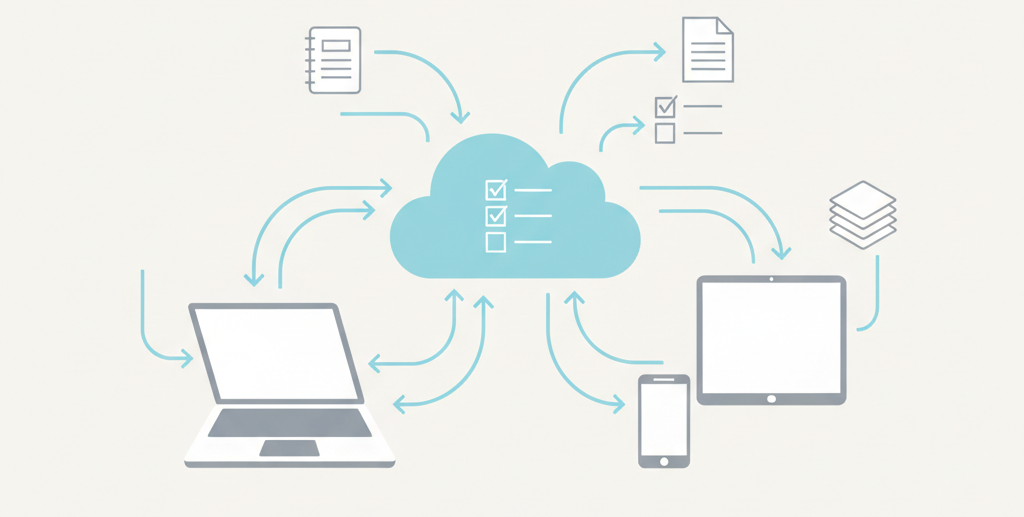
Productivity apps sync data across devices by storing your changes in a central system and updating every connected device whenever something changes. This ensures the same information appears everywhere in near real-time, so you can start work on your phone and continue seamlessly on your laptop.
What Does “Data Sync” Actually Mean?
Here’s the thing most people think “saving” and “syncing” are the same thing. They’re not, and understanding the difference will change how you think about your apps.
When you save something, you’re just storing it on the device you’re currently using. That note you typed on your phone? It’s sitting there, on your phone’s storage. Nothing more.
When you sync something, you’re doing something much more interesting. You’re sending that note to a central location (usually a server), and then that server pushes it to all your other devices. Your phone, your laptop, your tablet they all get the update.
Think of it like this: saving is writing something in your personal notebook. Syncing is writing it on a whiteboard that everyone in your workspace can see. The moment you write it, everyone sees the update.
This matters for modern productivity apps because we don’t live in a one-device world anymore. You might start your to-do list at breakfast on your phone, add to it during your lunch break on your laptop, and review it before bed on your tablet. Without syncing, you’d have three different versions of the same list. That’s a mess.
Real-world example: You’re on the train, typing a note on your phone about an idea for a project. Ten minutes later, you sit down at your desk, open the same notes app on your laptop, and there it is exactly what you just typed. You didn’t email it to yourself. You didn’t transfer any files. It just… appeared. That’s syncing doing its job.
Why Productivity Apps Need Syncing
multi-device usage isn’t just common anymore, it’s the default. I’d bet you’ve used at least two different devices today already. Your phone to check your calendar this morning, your computer for work, maybe a tablet in the evening.
Users don’t just want their data to sync—they expect it. And if it doesn’t? They’ll switch to an app that does. It’s that simple.
For businesses and collaboration, syncing isn’t just convenient, it’s essential. Imagine you’re working on a shared document with your team. Someone updates a section while you’re reviewing another part. Without syncing, you’d be working on outdated information. Decisions would be made based on old data. Things would fall apart quickly.
And here’s something people don’t always think about: offline work. You’re on a flight with no Wi-Fi, but you still need to get things done. You edit documents, add tasks, take notes. Then you land, your phone reconnects, and everything you did offline syncs up. That’s not magic—that’s syncing working exactly as it should.
The Basic Sync Flow (Big Picture)
Let me break down what happens when you make a change in a productivity app. This is the big picture, no technical jargon:
- You make a change – You edit a note, check off a task, add a calendar event, whatever it is.
- The app records the change – Your device notices something’s different and makes a note of exactly what changed.
- The central system updates – Your device sends that change to a central server (more on this in a second), and the server updates its master copy.
- Other devices receive the update – The server then pushes that change to all your other devices that are connected to the same account.
That’s it. Four steps, and your data is everywhere. Simple in concept, but there’s a lot happening behind the scenes to make it feel seamless.
Where Your Data Is Stored
Here’s something that surprises people: productivity apps don’t sync directly from device to device. Your phone doesn’t talk directly to your laptop. Instead, they both talk to a central storage system—usually a server maintained by the company that makes the app.
Why? Because it’s more reliable and more secure. If your devices tried to sync directly with each other, they’d need to be online at the exact same time. That’s rarely practical. But with a central server, each device can sync whenever it’s convenient, and the server keeps everything consistent.
Think of the server as the single source of truth. It’s the master copy. When your phone has a question “What’s the latest version of this document?” it asks the server, not your other devices.
Secure servers are important here. Your data is sitting in a centralized location, which means it needs to be protected. Reputable apps use encryption and secure connections to make sure your information stays private. We’ll talk more about security in a bit.
And here’s how apps remember what’s “latest” they use timestamps. Every change has a time associated with it. When the server sees two versions of the same item, it checks the timestamps and keeps the most recent one. Pretty straightforward.
How Apps Detect Changes
You might be wondering: how does the app know what changed? Does it compare the entire document character by character? That would take forever.
apps don’t do that. They track edits, deletes, and updates at a much more granular level. When you add a sentence to a note, the app doesn’t re-upload the entire note. It just sends information about that one sentence you added.
This is why syncing is fast. Apps sync changes, not entire files. Imagine you have a 50-page document. You fix a typo on page 23. The app doesn’t send all 50 pages to the server—it sends the one correction you made.
How does it know what changed? It keeps track. Every time you type, delete, or modify something, the app makes a log of that specific action. When it’s time to sync, it sends just the logs of what changed since the last sync.
Example: typing a sentence versus rewriting a document. If you type “Remember to call the client,” the app logs that you added that sentence. If you rewrite the entire document, the app logs that the whole thing changed. Either way, it’s only sending the necessary information.
How Real-Time Sync Works
When people say “real-time sync,” they usually mean the data updates almost instantly. You make a change on one device, and within seconds, it appears on another. That’s the ideal.
But here’s the reality: sync isn’t always instant, and that’s okay. “Real-time” usually means “within a few seconds,” not “within milliseconds.” There are practical reasons for this.
Apps often use something called background syncing. Instead of constantly checking for updates every single second (which would drain your battery and use up data), apps check for updates at regular intervals maybe every few seconds, maybe every minute, depending on the app.
What happens when two devices are open at once? Let’s say you’re editing a note on your phone, and you also have it open on your laptop. As you type on your phone, the laptop version updates in the background. You might not notice it happening, but if you look closely, you’ll see the changes appear.
Some apps handle this better than others. The really good ones will show you what’s changing in real-time, almost like you’re watching someone else type. Others might wait until you stop typing before they sync. Both approaches work, they’re just different philosophies.
How Offline Sync Works
This is one of the cleverest parts of how productivity apps work, and it’s something most people take for granted until it doesn’t work.
You’re on a plane. No internet. You open your task management app and add five new tasks. You’d think this wouldn’t work, right? No connection, no sync?
But it does work. Here’s why: the app stores your changes locally, on your device, in temporary storage. It’s basically keeping a running list of everything you did while offline.
Then, the moment your device reconnects to the internet, the app springs into action. It takes all those offline changes and sends them to the server. The server updates its records, and then pushes those updates to your other devices. From the user’s perspective, it just works.
The reason this matters is data loss prevention. Imagine if apps required an internet connection to function—you’d lose work every time you went through a tunnel or boarded a flight. Offline sync means your work is always captured, always safe, even when you’re disconnected.
What Happens During Sync Conflicts
Okay, here’s where things get tricky. And this is the part most users don’t think about until they experience it.
What happens when you edit the same thing on two different devices at the same time?
Let’s say you’re editing a note on your phone. At the exact same moment, you’re also editing the same note on your laptop (maybe you forgot you had it open). Both devices make changes. Both try to sync. Now the server has two different versions. Which one wins?
This is called a sync conflict, and apps handle it in different ways.
Some apps use a “last write wins” approach. Whichever change happened most recently is the one that gets kept. Simple, but sometimes frustrating if the “losing” change was important.
Other apps try to merge the changes. If you added a sentence on your phone and a different sentence on your laptop, the app might keep both. This is smarter, but harder to implement perfectly.
A few apps will actually alert you when a conflict happens and ask you to choose which version to keep. This puts you in control, but it can be annoying if it happens often.
Why does conflict handling matter? Trust. If you’ve ever lost work because an app synced the wrong version, you know exactly why. Good conflict handling builds confidence. Poor conflict handling makes users nervous about using the app.
How Security Is Maintained During Sync
Syncing means your data is traveling over the internet and being stored on someone else’s servers. That’s a legitimate concern. So how do apps keep your information safe?
First, secure transfer. When your device sends data to the server, it’s encrypted. Think of encryption like a locked box only the server has the key to open it. Even if someone intercepted the data while it was traveling, they couldn’t read it.
Second, authentication. Before your device syncs, it has to prove it’s actually you. This usually involves a login, maybe two-factor authentication. The server won’t accept changes from just anyone—it needs to verify your identity first.
Third, user identity management. The server knows which data belongs to which user. Your notes don’t accidentally get mixed with someone else’s notes. Each account is separate and secure.
Here’s the reassuring part: syncing doesn’t expose your data. If an app is built properly (and reputable apps are), syncing is actually safer than keeping everything only on your device. Why? Because if you lose your phone, your data is still safe on the server. If your laptop crashes, your work isn’t gone—it’s synced to the cloud.
Why Sync Sometimes Fails
sync doesn’t always work perfectly. You’ve probably experienced this. You make a change, but it doesn’t show up on your other device. Frustrating, right?
Here are the usual suspects:
Poor internet connection is the most common culprit. If your device can’t reach the server, it can’t sync. Sometimes your connection is just barely there—enough to browse the web, but not enough for the app to sync reliably.
App bugs or server delays happen too. Sometimes the app itself has a glitch. Sometimes the server is overwhelmed with requests and takes longer than usual to process your changes. Most apps are pretty good about this, but nothing’s perfect.
Version mismatches can cause problems. If you’re using an old version of the app on one device and a new version on another, they might not sync properly. Apps update their sync logic over time, and older versions can’t always keep up.
Background sync restrictions are sneaky. Your phone’s operating system might be limiting how often apps can sync in the background to save battery. You might not even realize it’s happening, but it can cause delays.
The good news? Most sync failures are temporary. Once your connection improves, or you update the app, or restart your device, sync usually catches up.
Sync vs Backup (Important Difference)
This is huge, and so many people get it wrong. Syncing is not the same as backing up. Understanding the difference could save you from a painful mistake.
Sync means keeping the same data on multiple devices. When you delete something on one device, it deletes everywhere. That’s the point—consistency.
Backup means keeping a separate copy of your data in case something goes wrong. If you delete something, the backup still has it.
Here’s why this matters: if you accidentally delete an important note on your phone, and your app syncs that deletion, the note is gone from all your devices. It’s not sitting in the cloud waiting for you to recover it—unless the app has a separate backup or “trash” feature.
A lot of users think sync equals backup. They think, “My data is synced to the cloud, so it’s safe.” And it is safe from device loss, but it’s not safe from user error. If you delete it, sync will make sure it’s deleted everywhere.
Best practices that good apps follow: they offer version history or a trash/recycle bin. This gives you a safety net. You can recover something you deleted accidentally, even if it synced the deletion.
Real-World Examples of Sync in Productivity Apps
Let’s look at how different types of productivity apps handle syncing:
Notes apps are usually the simplest. You write a note, it syncs almost instantly, and it appears on all your devices. Most notes apps sync individual notes, not the entire notebook, which keeps things fast.
Task management tools are a bit more complex because they have more moving parts. Tasks have due dates, priority levels, tags, subtasks. When you change any of these, the app needs to sync all of it. Good task apps handle this gracefully—you can tick off a task on your phone and see it disappear from your laptop’s list within seconds.
Document editors are the most challenging. You’re not just changing a line of text—you might be reformatting, adding images, creating tables. The app needs to track all of this and sync it in a way that doesn’t break the document’s formatting. The best document apps use sophisticated sync logic that can handle multiple people editing the same document at the same time.
Team collaboration apps add another layer: they’re syncing data between multiple users, not just multiple devices. When someone on your team updates a shared project, you need to see that update immediately. These apps often use real-time sync with notifications to keep everyone on the same page.
I’m keeping these examples brand-neutral because the principles apply across the board. How each specific app does it might differ, but the underlying logic is similar.
Common Myths About App Syncing
Let’s bust a few myths that I hear all the time:
Myth: “Sync is instant everywhere.” Not quite. It’s fast, usually within a few seconds, but it’s not literally instant. There’s always a tiny delay while data travels from your device to the server and then to your other devices.
Myth: “Offline changes always sync perfectly.” Most of the time, yes. But if you make a ton of changes offline and then connect to a spotty network, syncing can get messy. Conflicts can happen. It’s rare, but it’s not impossible.
Myth: “More devices means better sync.” Actually, more devices just means more opportunities for things to get out of sync if something goes wrong. The quality of sync depends on the app and your connection, not the number of devices you own.
Understanding what sync can and can’t do helps you set realistic expectations. It’s an incredibly powerful feature, but it’s not magic.
The Future of Cross-Device Sync
Syncing technology is getting better all the time. Here’s where I think it’s headed:
Smarter sync logic that understands context. Instead of just “last write wins,” future apps might analyze what you changed and make intelligent decisions about how to merge conflicting edits.
Faster background updates with lower battery drain. As devices and networks get more efficient, apps will be able to sync more frequently without killing your battery.
Better conflict resolution that actually understands your intent. Imagine an app that can look at two conflicting changes and say, “Oh, you were adding to this section on your phone while you were deleting a different section on your laptop. I’ll keep both changes.”
More user control over what syncs and when. Some people want everything synced instantly. Others prefer manual sync to save data. Future apps will probably offer more granular control.
The goal is always the same: make syncing so seamless that you don’t even think about it.
Wrapping Up
So there you have it how productivity apps sync data across devices, explained without the tech jargon.
At its core, syncing is about taking a change you make on one device, storing it in a central location, and pushing it to all your other devices. It happens in the background, usually within seconds, and it works even when you’re offline.
Syncing is a core product feature now, not a bonus. Any productivity app worth using has to sync reliably, or users will abandon it for one that does.
What should you realistically expect? Fast, reliable syncing most of the time, with occasional hiccups when your connection is poor or you’re doing something unusual like editing the same item on multiple devices simultaneously. Offline sync that captures your work even when disconnected. And security measures that keep your data private while it travels and while it’s stored.
Understanding how sync works helps you troubleshoot when things go wrong, trust your apps more when things go right, and appreciate just how sophisticated these tools have become. Next time you edit something on your phone and watch it appear on your laptop a few seconds later, you’ll know exactly what’s happening behind the scenes.