How to Add Navigation on an Online Store in Shopify

Navigation is one of the most underrated parts of a Shopify store. Many store owners focus heavily on product pages, ads, and pricing, but forget that customers can only buy when they can find things easily.
If your navigation is confusing, cluttered, or poorly structured, visitors get frustrated and leave. This directly affects sales, bounce rate, and even SEO.
Common navigation problems in Shopify stores include:
- Too many menu items
- Unclear menu labels
- Important pages hidden deep inside dropdowns
- No proper mobile navigation
This guide will walk you through how to add, manage, and optimize navigation in a Shopify online store, step by step. By the end, you’ll be able to create clean menus that help customers find products faster and move smoothly from browsing to checkout.
What Is Navigation in Shopify?
Navigation is the system of menus and links that helps users move around your online store.
In a Shopify store, navigation usually includes:
- The header menu at the top
- Dropdown or mega menus under main categories
- Footer menus with support and policy links
- Mobile navigation drawers
Types of navigation in Shopify
Shopify allows you to create multiple menus and assign them to different parts of your theme. These menus control how users discover products, collections, pages, and content.
How navigation affects usability, SEO, and conversions
Good navigation:
- Improves user experience by reducing confusion
- Helps search engines understand your site structure
- Improves internal linking
- Increases product discovery
- Boosts conversion rates
Bad navigation does the opposite. That’s why it’s not just a design task, it’s a growth decision.
Types of Menus in Shopify Navigation
Main Menu
The main menu is the primary navigation shown in your store header.
It usually includes:
- Product categories
- Main collections
- Core pages like About or Contact
Best use cases
- Highlight main product categories
- Direct users to best-selling collections
- Keep it short and focused
A good main menu answers one question: Where should the customer go next?
Footer Menu
Footer menus appear at the bottom of your store and support trust and usability.
They usually include:
- Contact page
- About page
- Shipping and returns
- Privacy policy
- Terms and conditions
- FAQs
Footer navigation is not for selling. It’s for reassurance, transparency, and support.
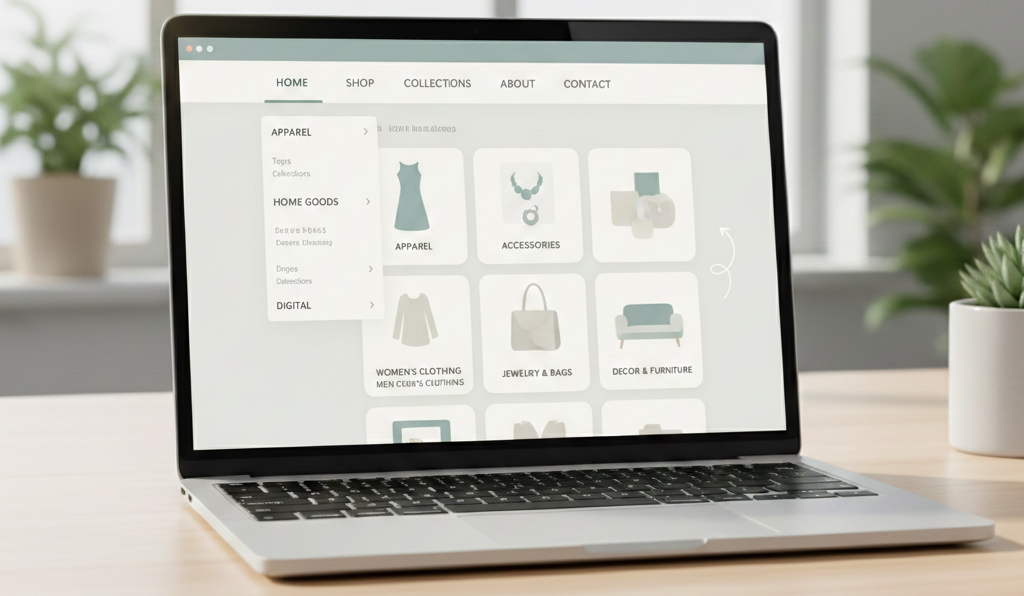
Dropdown and Mega Menus
Dropdown menus appear when users hover or click on a main menu item.
Dropdown menus
- Simple nested links
- Best for small to medium catalogs
Mega menus
- Large panels with multiple columns
- Can include headings, images, and grouped links
- Best for large catalogs with many categories
If your store has many products, mega menus can improve discoverability. If not, they can feel overwhelming.
Where to Manage Navigation in Shopify Admin
To manage navigation in Shopify:
- Go to Online Store
- Click Navigation
This section shows all menus in your store.
Navigation dashboard overview
Here you can:
- Create new menus
- Edit existing menus
- Add, remove, or reorder links
Default menus Shopify provides
Most stores start with:
- Main menu
- Footer menu
You can create as many additional menus as needed.
Step 1: Create a New Menu in Shopify
Add a New Menu
Inside Online Store → Navigation, click Add menu.
When naming your menu:
- Use clear internal names
- Example: “Header Categories” or “Footer Support Links”
The name is for admin use, customers won’t see it.
Choose the menu purpose:
- Header
- Footer
- Sidebar or drawer (theme-dependent)
Add Menu Items
Once the menu is created, start adding links.
You can link to:
- Products: specific product pages
- Collections: recommended for navigation
- Pages: About, Contact, FAQ
- Blog posts
- External URLs
Best practice
Use collections instead of individual products. This keeps navigation scalable as your catalog grows.
Step 2: Organize Menu Items Properly
Reorder Menu Items
Shopify allows drag-and-drop ordering.
Why order matters:
- Items at the top get more clicks
- Important categories should be visible without scrolling
- Logical order improves scanning
Place high-priority items first.
Create Dropdown Menus
Dropdown menus are created by nesting links.
How it works:
- Add a main menu item
- Drag another item slightly to the right under it
Rules to follow:
- Parent items should be categories
- Child items should be subcategories
- Avoid more than two levels deep
Too many layers confuse users, especially on mobile.
Step 3: Add Navigation Menu to Your Online Store
Using Shopify Theme Editor (No-Code Method)
Most modern Shopify themes support menu assignment without code.
Steps:
- Go to Online Store → Themes
- Click Customize
- Open the header or footer section
- Select the menu you created
You can switch menus anytime without editing content.
Assign Menus to Different Theme Sections
Depending on your theme, you can assign menus to:
Header navigation
- Main categories and collections
Footer navigation
- Policies, support, brand pages
Sidebar or drawer navigation
- Often used on mobile
- Helpful for stores with large catalogs
Always preview changes on both desktop and mobile.
Step 4: Create Collection-Based Navigation
Linking collections instead of products
Collections automatically update when products are added or removed. This makes them perfect for navigation.
Instead of linking:
- Individual T-shirts
Link:
- “Men’s T-shirts” collection
Smart collections vs manual collections
Manual collections
- You choose products manually
- More control
Smart collections
- Products are added automatically based on rules
- Best for large stores
Use smart collections when possible to reduce maintenance.
Best practice for category-based menus
- Group products logically
- Avoid overlapping categories
- Use clear naming
- Match navigation structure with customer intent
Navigation should reflect how customers think, not how products are stored internally.
How to Create Mega Menus in Shopify
What is a mega menu?
A mega menu is a large dropdown that displays:
- Multiple columns
- Category headings
- Subcategories
- Sometimes images
Theme requirements for mega menus
Not all themes support mega menus out of the box.
Check your theme:
- Theme documentation
- Header menu settings
- Demo examples
Some themes enable mega menus based on menu structure alone.
Basic setup logic
Common logic:
- Parent menu item triggers mega menu
- Child items act as columns
- Sub-items appear as links under headings
When mega menus improve UX (and when they don’t)
Use mega menus if:
- You have many categories
- Customers need quick overview
Avoid mega menus if:
- You sell only a few products
- Your catalog is simple
More is not always better.
Best Practices for Shopify Navigation
- Keep menu labels short and clear
- Avoid jargon and internal terms
- Limit main menu items to what matters
- Group related items logically
- Ensure navigation works well on mobile
- Highlight best-selling or high-converting pages
Navigation should guide, not overwhelm.
Common Shopify Navigation Mistakes to Avoid
Too many dropdown levels
Deep nesting makes navigation hard to use, especially on mobile.
Linking to individual products
Products change, collections scale better.
Ignoring mobile navigation
Most traffic is mobile. Always test menus on small screens.
Not updating menus
When new collections are added, navigation should reflect that.
SEO Tips for Shopify Navigation
How navigation helps internal linking
Menus create internal links across your site, helping search engines crawl pages more effectively.
Using keyword-friendly menu labels
Instead of:
- “Shop”
Use:
- “Men’s Shoes”
- “Wireless Headphones”
This helps both users and search engines.
Avoiding duplicate links
Too many repeated links dilute link value and clutter navigation.
Improving crawlability with clean menus
Simple, structured menus:
- Improve site hierarchy
- Make important pages easier to find
- Support long-term SEO growth
How Good Navigation Improves Your Shopify Store
Good navigation is not just about looks. It’s about helping customers reach the right product with the least effort.
When navigation is done right:
- Users stay longer
- Products are easier to discover
- SEO improves naturally
- Sales increase without extra ads
Treat navigation as a strategy, not a one-time setup. Review it regularly, test changes, and optimize based on how customers behave in your store.