How to Add Different Size Guides with Metafields in Shopify

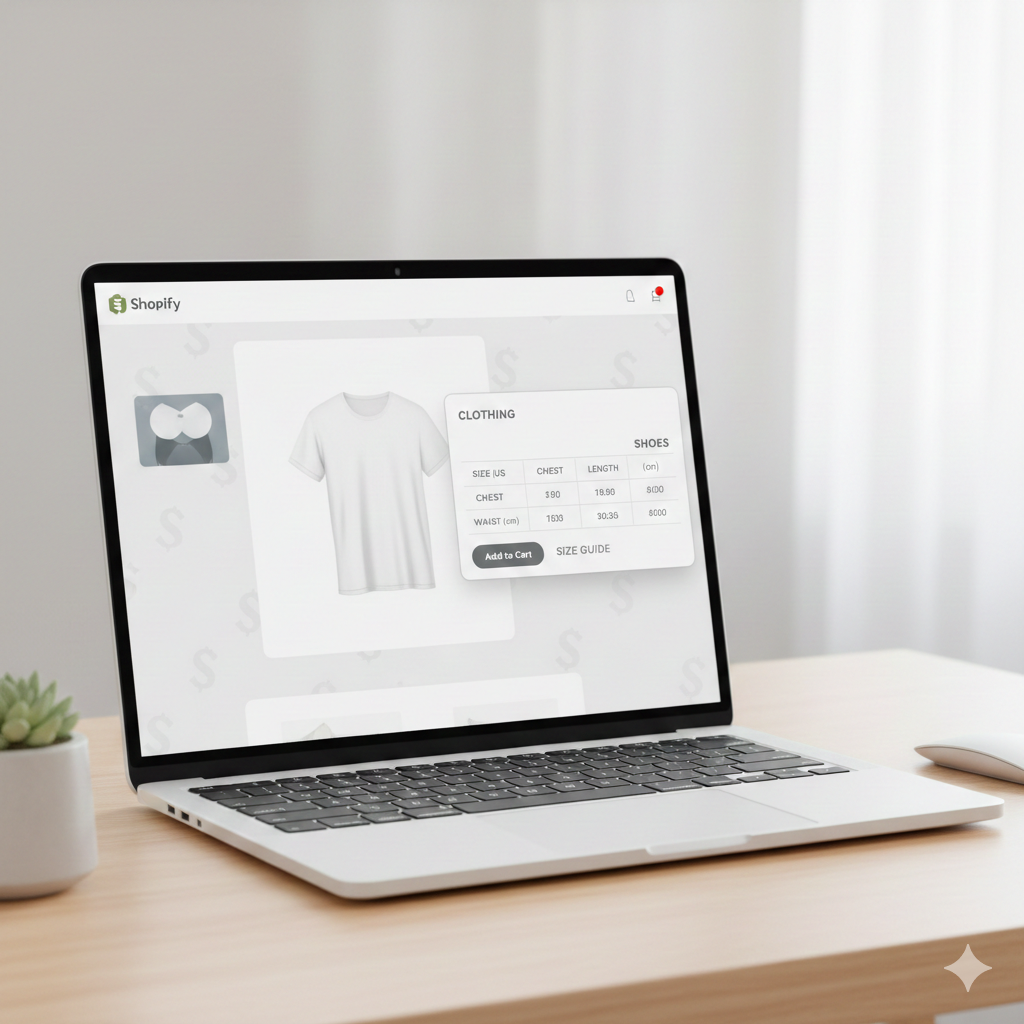
If you run a Shopify store that sells apparel, shoes, or accessories, you already know this problem: one size chart never fits all products.
A T-shirt size guide is very different from a jeans size chart. Shoe sizing varies again. Yet many stores still use a single global size chart for everything. This leads to confused customers, wrong purchases, and eventually high return rates.
Shopify metafields solve this problem neatly.
In this guide, you’ll learn how to add unique size guides for each product using Shopify metafields, without duplicating content or cluttering your product descriptions. By the end, you’ll be able to show the right size guide on the right product automatically.
Why You Need Different Size Guides in Shopify
Customer confusion leads to returns
When shoppers cannot find accurate sizing information, they guess. Guessing often leads to returns. In fashion and footwear stores, sizing is one of the biggest reasons for product returns.
A single size chart cannot explain:
- Different fits (slim, regular, oversized)
- Different measurement methods
- Product-specific dimensions
One global size chart is not enough
Using one size chart for all products works only if all products follow the same sizing logic. Most stores do not.
For example:
- A unisex T-shirt uses chest width and length
- Jeans need waist, hip, and inseam
- Shoes need foot length and regional sizing
Trying to explain all this in one chart usually overwhelms customers.
Benefits of product-specific size guides
When you use different size guides per product, you get clear advantages:
- Customers make better buying decisions
- Return rates go down
- Conversion rates improve because buyers feel confident
This is exactly where Shopify metafields help.
What Are Metafields in Shopify?
Metafields in plain language
Metafields are custom data fields in Shopify. They let you store extra information for products that does not fit well into the standard product description.
Think of metafields as structured notes attached to a product.
Why metafields are perfect for size guides
Size guides:
- Are different for each product
- Should not clutter the main description
- Need to be displayed dynamically on product pages
Metafields handle all of this cleanly.
Product description vs metafields
Product descriptions:
- Are static
- Mix marketing copy with technical info
- Become messy when overloaded
Metafields:
- Keep size information separate
- Are easy to update
- Can be reused and styled better in themes
Static pages vs dynamic metafields
Static pages work for a single size chart.
Metafields work when:
- Each product needs its own guide
- You want automation
- You plan to scale your catalog
Types of Size Guides You Can Add Using Metafields
Text-based size charts
Best for:
- Simple products
- Minimal sizing details
Easy to maintain but limited visually.
Table-based size charts
Best for:
- Apparel and footwear
- Multiple measurements
Usually created using rich text metafields or theme tables.
Image-based size guides
Best for:
- Visual instructions
- Measurement diagrams
Good for international audiences and clarity.
External link size guides (PDFs or Sheets)
Best for:
- Very detailed charts
- Brands with complex sizing systems
Use this carefully so customers do not leave the product page too early.
When to use each option
- Simple products: text
- Apparel and shoes: tables or images
- Technical products: PDFs or links
Step 1: Create a Size Guide Metafield in Shopify Admin
Go to Shopify Metafields Settings
In your Shopify admin:
- Go to Settings
- Click Custom data
- Select Products
This is where product-level metafields are created.
Add a New Metafield Definition
Click Add definition and fill in:
- Name: Size Guide
- Namespace and key:
custom.size_guide - Description: Add product-specific size information
Using a clear namespace keeps things organized.
Choose the Right Content Type
Here’s how to decide:
- Rich text
Best for formatted tables and headings - Multi-line text
Simple text, no formatting - File
Upload images or PDFs - URL
Link to external size guides
Recommended choice for most stores: Rich text, because it gives flexibility without code.
Step 2: Add Different Size Guides to Each Product
Open a Product in Shopify Admin
Go to Products, open any product, and scroll down. You will see the Metafields section at the bottom.
This is where your new size guide field appears.
Add Product-Specific Size Guide Content
Now add content based on the product type.
Example: T-shirts
- Chest width
- Length
- Sleeve length
Example: Jeans
- Waist
- Hip
- Inseam
Example: Shoes
- Foot length
- EU, UK, and US conversions
Each product can have completely different size information without affecting others.
Tips for consistency
- Use the same measurement units across products
- Follow a consistent table layout
- Keep language simple
Step 3: Display Size Guides on Product Pages
Using Shopify Theme Editor (No-Code Method)
If your theme supports dynamic sources:
- Go to Online Store → Themes
- Click Customize
- Open a product template
- Add a text or collapsible block
- Connect it to the Size Guide metafield
This is the easiest method and works for most modern themes.
Using Liquid Code (Advanced Method)
Use code when:
- Your theme does not support metafields visually
- You want custom placement or styling
In product templates, metafields are rendered using Liquid. Once added, the size guide shows only when the metafield has content.
This approach gives full control but requires basic Shopify theme knowledge.
How to Add Multiple Size Guides for Different Product Types
Product metafields vs product type metafields
Product metafields:
- Maximum flexibility
- Best for unique sizing
Product type or collection-based logic:
- Useful when many products share the same size guide
- Reduces repetition
Using collections with shared size guides
You can:
- Assign a size guide based on collection
- Use one metafield value for multiple products
This works well for large catalogs with standardized sizing.
Best structure for large catalogs
For scaling stores:
- Use product metafields for exceptions
- Use shared guides for standard products
- Document your naming conventions
Best Practices for Shopify Size Guides
- Keep charts clean and readable
- Avoid unnecessary columns
- Use consistent units like cm or inches
- Make sure tables are mobile-friendly
- Write in plain, customer-friendly language
A size guide should remove doubt, not create more questions.
Common Mistakes to Avoid
Using the wrong metafield type
Choosing plain text when you need tables limits flexibility.
Forgetting to connect metafields in the theme
Creating metafields alone does nothing unless they are displayed.
Overloading product descriptions
Size guides belong in metafields, not marketing copy.
Not testing on mobile
Many customers shop on mobile. Always preview size charts on small screens.
SEO and Conversion Tips for Size Guides
How size guides help SEO indirectly
Clear size guides:
- Increase time on page
- Reduce bounce rate
- Improve user satisfaction
Search engines notice these signals.
Reduce pogo-sticking and returns
When users find answers quickly, they do not go back to search results.
Improve trust signals
Transparent sizing builds credibility and brand trust.
Add internal links
Link related products inside size guide sections where relevant.
Is Using Metafields for Size Guides Worth It?
Using Shopify metafields for size guides is one of the cleanest ways to improve user experience in a product-based store.
They help you:
- Show accurate sizing
- Reduce returns
- Improve conversions
- Scale without content chaos
If your store sells products with different sizing needs, metafields are not optional. They are essential.
Start simple, test one product, and refine as you grow.