How to Change Shopify Inventory Location to a Third-Party (Step-by-Step Guide)

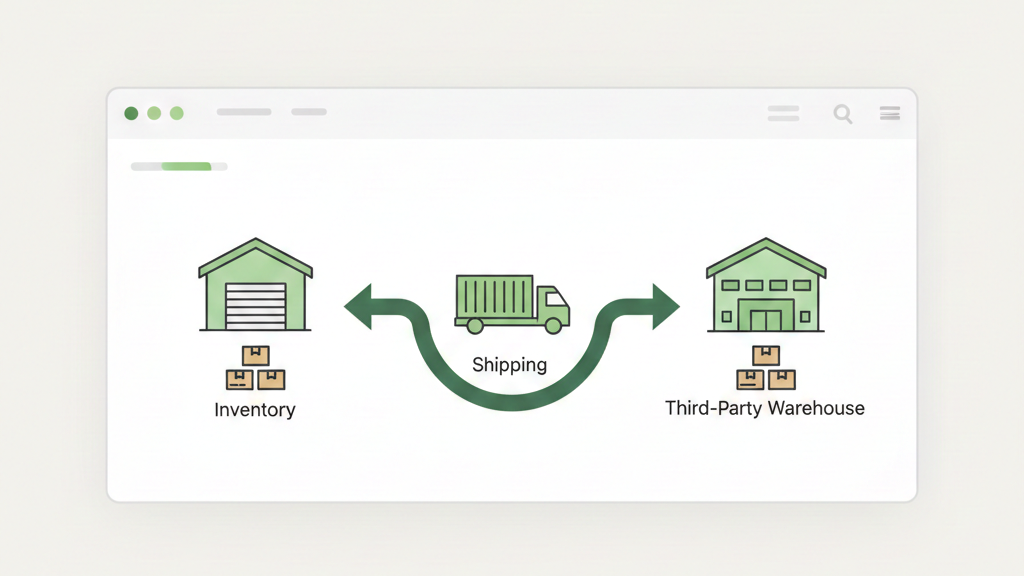
You can change Shopify inventory to a third-party location by adding a new location in Shopify, connecting it to a fulfillment service or app, and assigning inventory to that location instead of your default warehouse.
Many Shopify sellers reach a point where managing inventory in-house no longer makes sense. Whether you’re working with a 3PL to handle fulfillment, expanding internationally, or simply trying to speed up delivery times, moving your inventory to a third-party location is a common next step. The process involves more than just updating an address it affects how Shopify tracks stock, routes orders, and calculates shipping. This guide walks you through exactly how to make the switch without disrupting your store.
What Is an Inventory Location in Shopify?
An inventory location in Shopify is any physical place where you store products. It tells Shopify where your stock lives so the platform can track quantities, route orders to the right place, and calculate accurate shipping costs.
When you first set up your store, Shopify creates a default location usually your home address or warehouse. But as your business grows, you might add custom locations like a second warehouse, a retail store, or a third-party facility.
Here’s how these location types differ:
Default location: The original address Shopify assigns to your store. All inventory starts here unless you move it elsewhere.
Custom locations: Additional warehouses or storage facilities you manage yourself. You control the inventory counts and fulfillment process.
Third-party/fulfillment service locations: Warehouses managed by external companies (like 3PLs or dropshipping suppliers). These locations are often controlled by apps that sync inventory and handle fulfillment automatically.
Shopify uses locations for three main purposes: tracking stock levels across different facilities, deciding which location should fulfill each order, and determining shipping rates based on where products ship from. Understanding this helps you see why setting up locations correctly matters for your operations.
What Does “Third-Party Inventory Location” Mean?
A third-party inventory location is a warehouse or facility you don’t directly control. Instead of storing products in your own space, you send them to an external partner who manages storage and shipping on your behalf.
Common examples include 3PL (third-party logistics) warehouses that receive your bulk inventory and fulfill orders as they come in, dropshipping suppliers who ship products directly from their facilities without you ever touching the stock, and print-on-demand providers who create and ship custom products only after a customer orders.
The key difference from Shopify-managed locations is who controls the inventory numbers. With your own warehouse, you manually update stock counts in Shopify when you receive or sell products. With third-party locations, an app typically syncs inventory automatically Shopify pulls the current stock levels from the fulfillment service’s system, and you often can’t edit these numbers directly. This automation prevents conflicts between what Shopify shows and what’s actually available at the warehouse.
When Should You Move Inventory to a Third-Party Location?
Moving inventory to a third-party location makes sense in several situations. If you’re using a 3PL, your products physically live in their warehouse, so Shopify needs to reflect that location for accurate fulfillment. Dropshipping businesses should assign inventory to supplier locations so Shopify knows where orders will ship from. Running a multi-warehouse setup whether you manage it yourself or through partners requires proper location assignments to route orders efficiently. International fulfillment often involves storing inventory in different countries to reduce shipping times and costs.
You’ll know it’s time to switch when you’re spending too much time on packing and shipping instead of growing your business, customers are complaining about slow delivery, you’re running out of storage space, or you’re expanding to new markets and need local fulfillment.
Many sellers delay this change because they worry about losing control or messing up their inventory. But continuing to manage everything manually when you’ve outgrown that approach leads to fulfillment delays, stock mismatches, and frustrated customers. The sooner you set up third-party locations properly, the smoother your operations become.
Things to Check Before Changing Inventory Location
Before you change where inventory lives in Shopify, take a few minutes to review your current setup. Rushing this step causes most of the headaches sellers experience later.
First, check if you have products already listed and live on your store. If you do, you’ll need to reassign their inventory to the new location—Shopify won’t do this automatically. Look for any active orders that haven’t shipped yet. Changing locations while orders are in progress can create confusion about which warehouse should fulfill them.
See if you’ve already installed fulfillment apps. Some apps automatically create locations when you connect them, which means you might not need to add a location manually. Review who has access to your Shopify settings. Only users with the right permissions can add or modify locations, so make sure you or someone on your team has admin access.
Finally, understand how your shipping profiles work. Shopify uses locations to calculate shipping rates, so changing where products ship from might affect what customers pay at checkout. If you skip these checks, you risk creating stock mismatches where Shopify shows inventory at the wrong location, orders get routed to warehouses that don’t actually have the products, or shipping costs display incorrectly.
Step-by-Step: How to Add a Third-Party Location in Shopify
Adding a third-party location in Shopify takes just a few clicks, but understanding what each step does helps you avoid common setup mistakes.
Step 1: Go to Shopify Locations Settings
From your Shopify admin dashboard, click Settings in the bottom left corner, then select Locations from the settings menu. You’ll see a list of all current locations, starting with your default one. This page is your control center for managing where inventory lives. If you’ve installed fulfillment apps, they might already appear here with locations they created automatically.
Step 2: Add a New Location
Click the “Add location” button. Shopify will ask for a location name and address. The name is just for your internal reference—choose something clear like “ShipBob Warehouse” or “California 3PL” so you can easily identify it later. The address matters more than you might think. Even though a third-party company manages this warehouse, Shopify uses this address for shipping calculations and order routing logic.
You’ll notice Shopify distinguishes between manual locations (warehouses you control) and fulfillment service locations (controlled by apps). If you’re adding a location that an app will manage, you might not need to do this step manually at all—the app creates its own location when you connect it. But if you’re setting up a warehouse relationship without an app, or you want to add a location before the app connection is complete, adding it manually works fine.
Step 3: Enable the Location for Online Orders
After adding the location, you’ll see a toggle labeled “Fulfills online orders” or similar wording. This is critical. If you disable this toggle, Shopify won’t route any online orders to this location—it only tracks inventory there. For a third-party fulfillment warehouse, you almost always want this enabled so orders can actually ship from that location. The only time you’d disable it is if you’re using the location purely for inventory tracking, like a storage facility you’re moving products from but not shipping from.
How to Connect a Third-Party Fulfillment App
Most third-party locations aren’t managed manually—they’re controlled by apps that sync inventory and handle fulfillment automatically. This is actually easier than managing locations yourself, once you understand how it works.
When you install a fulfillment app (like those for popular 3PLs, dropshipping platforms, or print-on-demand services), the app typically asks for permission to create locations and manage inventory. Once you grant permission, the app adds its warehouse as a new location in your Shopify settings. You’ll see it listed alongside your default location.
Here’s what changes once an app controls inventory: Shopify pulls stock numbers directly from the fulfillment service’s system. You can’t manually edit inventory counts for products assigned to app-managed locations—the app owns those numbers. When a customer places an order, the app receives the order details and handles fulfillment, updating Shopify with tracking information once the product ships.
Some apps sync inventory in real-time, while others update every few hours. This delay is normal and rarely causes issues unless you’re selling extremely high-volume products that could sell out between sync cycles. The app’s settings usually let you adjust sync frequency if needed.
The biggest thing sellers misunderstand here is why they can’t edit inventory numbers anymore. It feels like losing control, but it’s actually preventing a common problem: having different stock counts in Shopify versus what’s actually at the warehouse. The app ensures both systems always match.
How to Move Inventory to the Third-Party Location
Once you’ve added a location (either manually or through an app), you need to assign inventory there. How you do this depends on who controls the location.
Option 1: Assign Inventory Manually (If Shopify-Managed)
If you added a location manually and you’re managing it yourself—not through an app—you can move inventory in Shopify’s admin. Go to Products, select a product, and click on the Inventory section. You’ll see stock levels broken down by location. Click “Edit locations” and check the box next to your new third-party location. Now you can enter how many units are stored there.
This method works when you’re setting up a new warehouse relationship and haven’t connected an app yet, or when you’re using a fulfillment partner that doesn’t have a Shopify app. You’ll manually update these numbers whenever inventory changes.
Option 2: Let the Fulfillment App Control Inventory
If a fulfillment app manages the location, you don’t move inventory manually at all. Instead, you tell the fulfillment service (outside of Shopify) how many units you’re sending them. The app then syncs that inventory to Shopify automatically.
When this happens, you’ll notice the inventory fields in Shopify turn gray or show a lock icon for products at that location. This is completely normal—Shopify is showing you that the app controls these numbers now. You can view the stock levels, but you can’t edit them directly. Any changes have to happen in the fulfillment service’s system, which then syncs to Shopify.
Many sellers panic when they see this, thinking something broke. It didn’t—this is exactly how it should work. The app and Shopify are communicating to keep everything in sync without you needing to manually update two systems.
How Order Fulfillment Works After Changing Location
Once you’ve set up a third-party location and assigned inventory there, Shopify handles order routing automatically, but understanding the logic helps you troubleshoot when things don’t go as expected.
When a customer places an order, Shopify looks at which locations have the product in stock and are enabled to fulfill online orders. If only one location has the item, Shopify routes the order there. If multiple locations have stock, Shopify uses location priority (which you can set in your locations settings) to decide which warehouse ships it. Generally, Shopify prioritizes locations closest to the customer or the one listed first in your priority order.
For orders with multiple products, Shopify might split fulfillment across locations if different items are stored in different warehouses. This is called partial fulfillment. The customer receives separate shipments, which isn’t ideal but works when you’re running a multi-location setup. You can adjust your inventory strategy to minimize this—for example, by ensuring popular product bundles are always stocked together at the same location.
If you’re using a fulfillment app, the app intercepts the order once Shopify routes it to that location. The app handles the actual picking, packing, and shipping, then sends tracking information back to Shopify. Your customer sees the order status update automatically without you touching anything.
Common Issues After Switching to a Third-Party Location
Even when you follow all the steps correctly, a few common issues pop up after changing inventory locations. Knowing what to look for makes them easy to fix.
Inventory showing “0” unexpectedly: This usually means products aren’t assigned to the new location yet. Shopify might still be pointing to your default location, which now has zero stock. Go back to your product inventory settings and make sure the new location is selected and has stock assigned.
Orders stuck as “Unfulfilled”: If orders aren’t moving to the fulfillment stage, check whether the location is enabled for online orders. Also verify that your fulfillment app is properly connected and receiving order notifications from Shopify.
Shipping rates not appearing: Shopify calculates shipping based on the location products ship from. If you added a new location but didn’t update your shipping profiles, rates might not display correctly at checkout. Go to Settings → Shipping and delivery, and make sure your shipping zones and rates account for the new location.
Products not assigned to the new location: This happens when you add a location but forget to assign specific products to it. Shopify won’t automatically move inventory—you have to explicitly tell it which products are stored where.
App sync delays: If you just connected a fulfillment app, inventory might take a few minutes to a few hours to sync initially. This is normal. If it’s been longer than expected, check the app’s status page or contact their support.
How to Fix Inventory & Fulfillment Issues
When something goes wrong with your third-party location setup, these troubleshooting steps solve most problems.
Re-assign product availability: Go to Products → select a product → Inventory → Edit locations. Make sure the third-party location is checked and has the correct stock quantity. If an app controls inventory, you’ll need to update stock in the fulfillment service’s system instead.
Check location priority: In Settings → Locations, you can drag locations to reorder them. Shopify uses this priority when deciding which warehouse fulfills an order if multiple locations have stock. Make sure your preferred fulfillment location is ranked appropriately.
Review fulfillment service settings: If using an app, open the app and verify it’s connected to your Shopify store, has permission to manage inventory and orders, and is set to active or enabled (not paused).
Re-sync inventory: Many fulfillment apps have a “sync now” button that forces an immediate inventory update instead of waiting for the automatic sync cycle. Use this if stock numbers seem outdated.
Test with a draft order: Before going live with the new setup, create a draft order in Shopify with a product stored at the third-party location. Process it as if a real customer ordered it, and watch how the fulfillment flow works. This catches issues before they affect paying customers.
Shopify Inventory Location vs Fulfillment Service (Key Difference)
One of the most confusing aspects of third-party inventory is understanding the difference between a location and a fulfillment service. They’re related but not the same thing.
| Inventory Location | Fulfillment Service |
|---|---|
| A physical address where stock is stored | An app or integration that handles shipping |
| Controls where Shopify thinks inventory lives | Controls who actually picks and ships orders |
| Can be manual (you update stock) or app-managed | Always automated through an app |
| Required for all products | Only needed if someone else fulfills orders |
| Shows up in Settings → Locations | Shows up in Settings → Apps or through app-specific settings |
Here’s why this distinction matters: You can have a location without a fulfillment service (for example, your own warehouse where you manually ship orders). You can’t have a fulfillment service without a location (the app needs somewhere to point Shopify for inventory tracking).
Most sellers get confused because when they install a fulfillment app, it creates both—a location AND a fulfillment service—at the same time. They see the new location appear in settings and assume that’s all that happened. But the app also set itself up as the fulfillment handler, which is why inventory becomes read-only and orders route automatically.
Understanding this helps you troubleshoot. If inventory numbers look wrong, it’s a location/stock issue. If orders aren’t shipping, it’s a fulfillment service issue.
Best Practices for Managing Third-Party Inventory in Shopify
Once your third-party location is set up and working, these practices keep things running smoothly.
Use one source of truth: Decide whether Shopify or your fulfillment partner’s system is the master record for inventory. If an app manages inventory, let it—don’t try to manually override numbers in Shopify. This prevents conflicts and keeps stock counts accurate.
Avoid manual overrides: When you’re tempted to manually adjust inventory at an app-managed location (even though you can’t usually do this anyway), resist. Make changes in the fulfillment service’s system so they sync properly to Shopify.
Regular inventory audits: Every few weeks, spot-check that Shopify’s inventory numbers match what your fulfillment partner reports. Small discrepancies can compound over time, leading to overselling or frustrated customers.
Test with a draft order: Whenever you change location settings, shipping profiles, or app configurations, create a test order to make sure everything routes correctly before customers are affected.
Keep backup stock logic: If possible, maintain at least a small amount of inventory in a location you control directly. This gives you flexibility if your fulfillment partner has issues or you need to fulfill orders manually in an emergency.
Conclusion
Changing your Shopify inventory to a third-party location comes down to understanding two things: locations control where Shopify thinks your stock lives, and fulfillment services control who actually ships orders. Once you set this up correctly whether you’re adding a location manually or connecting an app Shopify handles order routing automatically based on stock availability and location priority.
The process might feel complicated at first, especially when apps start managing inventory and you can’t edit numbers directly. But this automation is actually what makes third-party fulfillment work smoothly. You’re not losing control you’re gaining a system that keeps everything in sync without you needing to manually update multiple platforms.
Take the time to set locations up properly, test the order flow with a draft order, and verify inventory syncs correctly. Once everything’s running, you’ll wonder why you didn’t make the switch sooner.
FAQs
Can I have multiple third-party locations?
Yes. Shopify supports unlimited locations, so you can work with multiple 3PLs, dropshipping suppliers, or warehouses simultaneously. Each one appears as a separate location in your settings. Just make sure you assign products to the correct locations and set location priority appropriately.
Does changing location affect existing orders?
Not if they’ve already been fulfilled or are in the process of fulfilling. Shopify assigns orders to locations when customers place them. Changing location settings afterward doesn’t retroactively move orders. But any new orders will route to the updated location based on your current settings.
Can I split inventory between my store and 3PL?
Absolutely. You can assign some units of a product to your default location and other units to a third-party location. Shopify tracks stock separately at each location and routes orders based on which location has availability and higher priority.
Why can’t I edit inventory numbers?
If a fulfillment app controls a location, Shopify locks those inventory fields to prevent conflicts between what Shopify shows and what’s actually at the warehouse. The app syncs the real stock count automatically. To change inventory, update it in the fulfillment service’s system not in Shopify directly.
Do third-party locations affect shipping costs?
Yes. Shopify calculates shipping rates based on where products ship from. If your third-party location is in a different region than your default location, customers might see different shipping costs. Make sure your shipping profiles account for all active locations to avoid surprises at checkout.

[…] inventory is not synced, a product can sell on Etsy and Shopify at the same time, even if only one item is […]
[…] and real-world scalability. You’ll get direct comparisons that matter for SEO, API integration, inventory management, performance, and long-term growth so you can pick the platform that fits your roadmap with minimal […]