How to Change All Products to Physical Products in Shopify

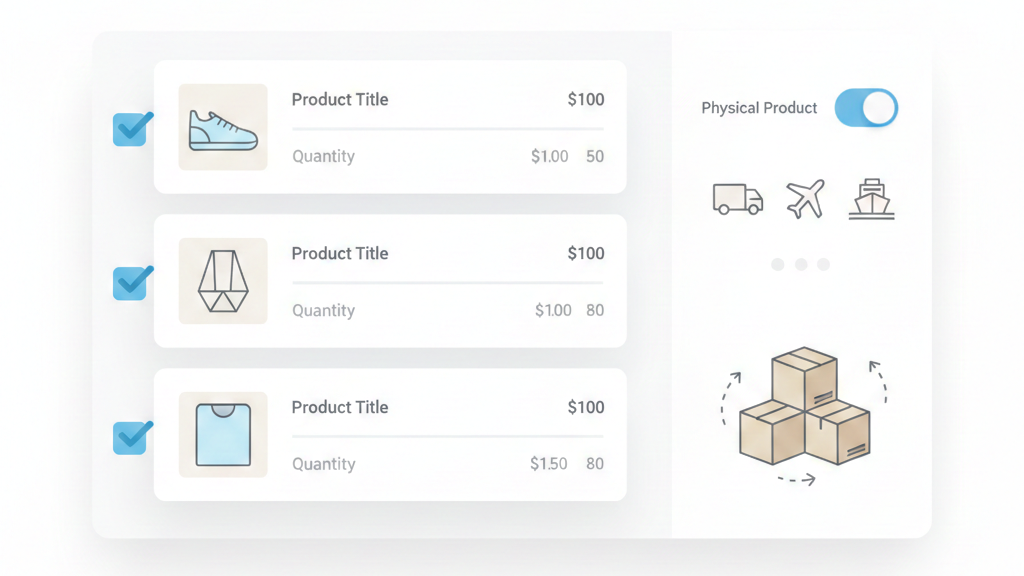
Shopify doesn’t have a one-click button to convert all your products to physical products, but don’t worry it’s actually pretty straightforward. You can do this using Shopify’s built-in bulk editor (great for smaller stores), by exporting and editing a CSV file (perfect for larger catalogs), or by using third-party apps that automate the process. The key is enabling the “This is a physical product” checkbox, which turns on shipping and inventory tracking for your items.
Why This Happens in Shopify
Let me explain why you might be dealing with this in the first place.
I’ve seen this happen to store owners all the time, and it’s usually not their fault. Here are the most common situations:
You migrated from digital products. Maybe you started selling digital downloads, courses, or templates, and now you’re expanding into physical goods. Shopify remembers your old settings.
You used a digital downloads app. Apps like Digital Downloads or SendOwl automatically mark products as non-physical. Even after you stop using them, those settings stick around.
You imported products incorrectly. When you bring products in through CSV files or migration apps, sometimes the “Requires shipping” field gets set to FALSE by default—or it just gets overlooked entirely.
Here’s the thing: Shopify treats physical and non-physical products very differently under the hood. If your products aren’t marked as physical, your store can’t calculate shipping rates properly. Your checkout might break. Customers won’t see shipping options. And your fulfillment workflow basically won’t exist because Shopify thinks there’s nothing to ship.
So yeah, this setting matters more than you might think.
What Is a Physical Product in Shopify?
Alright, let’s break down what “physical product” actually means in Shopify terms.
When you check that little box that says “This is a physical product” in your product settings, you’re telling Shopify: “Hey, this item needs to be shipped to a customer.”
That’s it. That’s what it means.
Now, here’s how Shopify divides products:
Physical products: These are tangible items—clothes, gadgets, books, candles, whatever. They need boxes, shipping labels, and a carrier to deliver them. Shopify tracks their weight, calculates shipping costs, and connects them to your fulfillment process.
Digital or non-shippable products: These are things customers download or access online—ebooks, software licenses, gift cards, online courses. No shipping needed. No tracking. No fulfillment locations.
Internally, Shopify uses this setting to decide a bunch of important things:
- Whether to show shipping rates at checkout
- Whether to track inventory at specific locations
- Whether to generate fulfillment tasks
- Whether to connect the product to your shipping carrier integrations
So if you mark something as non-physical by accident, Shopify literally won’t know it needs to be shipped. And that causes all sorts of headaches.
How to Check If Your Products Are Non-Physical
Before you start changing things, let’s figure out which products actually need fixing.
Here’s where you find the setting:
- Go to Products in your Shopify admin
- Click on any product
- Scroll down to the Shipping section
- Look for the checkbox that says “This is a physical product”
If that box is unchecked, bingo—you found a non-physical product.
Now, here are some telltale signs your products aren’t marked as physical (even if you haven’t checked yet):
Shipping rates aren’t showing at checkout. Customers get to the payment page and see “No shipping method available” or something similar. That’s usually the biggest red flag.
Checkout errors or abandoned carts. If people can’t complete their purchase because shipping options are missing, they’ll just leave.
No fulfillment workflow. When you go to fulfill an order, there’s no option to create a shipping label or mark it as fulfilled. Shopify thinks there’s nothing to ship.
If any of these sound familiar, you’ve got non-physical products that need converting.
Method 1: Change Products to Physical Using Shopify Bulk Editor (Best for Small Stores)
This is my favorite method if you’re running a smaller store—let’s say under 100 to 200 products. It’s quick, visual, and you don’t need to mess with spreadsheets.
Here’s exactly how to do it:
Step 1: In your Shopify admin, go to Products → All products
Step 2: Select the products you want to change. You can click the checkboxes next to each one, or click the top checkbox to select all products on the current page.
Step 3: Once you’ve selected your products, click the Edit products button that appears at the top.
Step 4: This opens the bulk editor. Now click Add fields (usually on the right side).
Step 5: Look for and add the Shipping column. This will show you the shipping settings for all selected products.
Step 6: In the Shipping column, you’ll see a checkbox for each product. Check the box for “This is a physical product” for all the products you want to convert.
Step 7: Click Save at the top right.
Done. Shopify will process the changes, and within a few seconds, all those products will be marked as physical.
When to use this method:
I recommend the bulk editor when you have a manageable number of products and you want to visually confirm what you’re changing. It’s also great if you’re not comfortable working with CSV files or if you only need to change a specific subset of products (like just one collection or product type).
When NOT to use it:
If you have hundreds or thousands of products, the bulk editor can get clunky. You’ll be clicking through multiple pages, and it’s easy to miss products. That’s when CSV is better.
Method 2: Change All Products to Physical Using CSV (Best for Large Stores)
If you’ve got a big catalog, CSV is the way to go. I know spreadsheets can feel intimidating, but I’m going to walk you through this step by step.
First, let me explain the logic
Shopify uses a column in your product data called “Requires Shipping” to determine whether something is physical. If that column says TRUE, it’s a physical product. If it says FALSE or is blank, it’s not.
So our job is simple: export your products, change that column to TRUE for everything, and upload it back.
Here’s how to do it:
Step 1: Export your products
- Go to Products → All products
- Click Export
- Choose “All products” and select “CSV for Excel, Numbers, or other spreadsheet programs”
- Click Export products
- Shopify will email you a download link (usually takes a minute or two)
Step 2: Open the CSV file
Download the file and open it in Excel, Google Sheets, or whatever spreadsheet program you use.
Step 3: Find the “Variant Requires Shipping” column
Scroll to the right until you see a column labeled “Variant Requires Shipping”. This is the column we need to edit.
Step 4: Set all values to TRUE
Here’s the fastest way:
- Click the column header to select the entire column
- Use Find & Replace (Ctrl+H on Windows, Cmd+H on Mac)
- Find:
FALSE(or just find blank cells) - Replace with:
TRUE - Replace all
Make sure every row under “Variant Requires Shipping” now says TRUE.
Step 5: Save the file
Save it as a CSV file. Don’t save it as .xlsx or any other format—it must be .csv for Shopify to accept it.
Step 6: Re-upload to Shopify
- Go back to Products → All products
- Click Import
- Upload your edited CSV file
- Choose “Overwrite any current products that have the same handle”
- Click Upload and continue
Shopify will process the file. This might take a few minutes depending on how many products you have. You’ll get a summary when it’s done.
Common CSV mistakes to avoid
I’ve seen people mess this up, so let me warn you:
Don’t change product handles. The handle is what Shopify uses to identify products. If you change it, Shopify will create duplicate products instead of updating existing ones.
Don’t delete variant rows. If a product has multiple variants (like different sizes or colors), each variant gets its own row in the CSV. Delete a row, and you’ll delete that variant from your store.
Always make a backup first. Before you re-upload, save a copy of your original export. If something goes wrong, you can fix it.
Don’t upload without double-checking. Open the CSV one more time before importing and make sure you only changed the “Variant Requires Shipping” column. Accidental edits in other columns can cause chaos.
Method 3: Use Shopify Apps to Bulk Convert Products
Sometimes you don’t want to deal with bulk editors or CSV files. I get it. That’s where apps come in.
When apps make sense
Apps are great if:
- You’re not tech-savvy and find CSV files confusing
- You need to do this regularly (like if you add new products often)
- You want automation—like “always mark new products as physical”
- You have other bulk editing needs (prices, tags, descriptions, etc.)
Types of apps that can help
Bulk editor apps: These let you edit multiple product fields at once with a nice interface. Popular ones include Hextom: Bulk Product Edit and Ablestar Bulk Product Editor.
Product automation tools: Apps like Shopify Flow (free for Shopify Plus) or third-party automation apps can set rules like “When a new product is created, automatically enable shipping.”
Pros and cons
Pros:
- User-friendly interfaces
- No spreadsheet knowledge needed
- Can automate future updates
- Often include undo features
Cons:
- Most good apps cost money (usually $5–$30/month)
- You’re relying on a third party
- Might be overkill if you only need to do this once
- Some apps have learning curves too
My take? If you’re only doing this once and you’re comfortable with the bulk editor or CSV, skip the app. But if you manage products regularly or want ongoing automation, an app might be worth the investment.
What Happens After You Convert Products to Physical
Alright, you’ve made the change. Now what?
Here’s what you should see immediately:
Shipping rates start appearing at checkout. This is the big one. Customers will now see actual shipping options based on their location, your shipping zones, and the product weights you’ve set.
Inventory tracking works properly. Shopify can now track how many units you have at each fulfillment location. You’ll get low-stock alerts, and overselling becomes less of an issue.
Fulfillment options become active. When orders come in, you’ll be able to create shipping labels, print packing slips, and use your connected fulfillment services (like ShipStation or Shopify Shipping).
Better checkout experience overall. Customers trust a checkout flow that works smoothly. When shipping appears correctly, cart abandonment goes down.
Basically, your store starts functioning like a real physical goods store should.
Important Things to Double-Check After Conversion
Don’t just convert and walk away. There are a few settings you need to verify to make sure everything works correctly.
Shipping profiles
Go to Settings → Shipping and delivery. Make sure your products are assigned to the right shipping profile. If you have different shipping rules for different product types (like fragile items or international-only products), check that they’re grouped correctly.
Product weight
This is huge. If your products don’t have weights assigned, Shopify can’t calculate accurate shipping rates.
Go through your products and add weights:
- Click on each product
- Scroll to the Shipping section
- Enter the weight
Yes, it’s tedious. But it’s necessary, especially if you’re using carrier-calculated shipping rates.
Fulfillment location
Check that your products are stocked at the right locations:
- Go to Settings → Locations
- Make sure your warehouse or store location is set up
- Verify that inventory is assigned to the correct location
Inventory tracking toggle
Even if a product is marked as physical, you might have inventory tracking turned off. Go to each product and make sure “Track quantity” is enabled in the Inventory section (unless you have unlimited stock or you’re dropshipping).
Shipping zones and rates
Double-check your shipping zones:
- Go to Settings → Shipping and delivery
- Review each shipping zone
- Make sure rates are set up (flat rate, weight-based, or carrier-calculated)
If you haven’t set up shipping zones yet, now’s the time. Otherwise, customers still won’t see shipping options even though your products are marked as physical.
Common Problems and Fixes
Even after you convert everything, you might run into issues. Here are the ones I see most often:
Products still not showing shipping
Possible causes:
- No shipping zones set up
- Product weight is missing
- Shipping profile misconfigured
- Product isn’t assigned to a location
Fix: Go through the checklist I mentioned above. Usually it’s the shipping zones or missing weights.
Variants not updated
Sometimes you’ll update a product but forget that each variant has its own shipping setting.
Fix: Go back to the product, click on each variant individually, and make sure the shipping checkbox is enabled for all of them. Or use the CSV method, which updates all variants at once.
Checkout showing “no shipping available”
This is frustrating for customers (and you).
Possible causes:
- Customer’s address isn’t in any of your shipping zones
- Shipping rates aren’t configured for that zone
- Product weight exceeds your carrier limits
- App conflict (some apps interfere with shipping calculations)
Fix: Test checkout yourself with different addresses. Check your shipping zones to make sure you’re covering all the regions you want to ship to. If you’re using a shipping app, temporarily disable it to see if that’s the problem.
CSV import errors
Shopify might reject your CSV with an error message.
Common reasons:
- Wrong file format (needs to be .csv, not .xlsx)
- Missing required columns (like Handle or Title)
- Special characters in the data
- File too large
Fix: Re-export a fresh CSV from Shopify, make only the shipping column changes, and try again. If the file is huge, try splitting it into smaller batches.
When You Should NOT Convert Products to Physical
Before you go marking everything as physical, let me stop you—there are some products that should stay non-physical.
Gift cards
These are digital by nature. Customers receive a code via email. Don’t enable shipping for these.
Digital downloads
If you sell ebooks, music files, software, templates, or any other downloadable content, keep these as non-physical. Otherwise you’ll confuse customers (and yourself) trying to “ship” a PDF.
Service-based products
Consulting sessions, virtual appointments, memberships, subscriptions—these don’t need shipping enabled. They’re not tangible goods.
Hybrid stores (digital + physical)
If you sell both physical and digital products, be selective. Don’t convert everything. Go through product by product or use filters in the bulk editor to only change the physical items.
The rule of thumb: If a customer needs to receive a physical package, mark it as physical. If they receive it via email or download, don’t.
Best Method Based on Store Size
Let me break down which method I’d recommend based on your situation:
Small store (under 100 products): Use the bulk editor. It’s visual, straightforward, and you can get it done in 5 minutes. No need to overcomplicate things with CSV files.
Medium to large store (100–1000+ products): Go with the CSV method. Yes, it’s a bit more technical, but it’s the fastest way to update hundreds or thousands of products at once. Just follow my steps carefully and you’ll be fine.
Automation-heavy store or ongoing management: Consider investing in a bulk editor app. If you’re constantly adding new products or making changes, an app will save you time in the long run and reduce the chance of mistakes.
And here’s the most important thing I want you to remember: this is completely safe and reversible. If you mess something up, you can always go back and change it. Your products won’t disappear. Your store won’t break. At worst, you might need to re-upload an old CSV or manually fix a few products.
FAQs
Can I change all Shopify products to physical at once?
Yes, but not with a single button click. You’ll need to use the bulk editor (for smaller stores) or the CSV export/import method (for larger stores). Both let you change all products at once, but they require a few steps to complete.
Why does Shopify mark products as non-physical?
Usually because of how they were created or imported. If you used a digital download app, migrated from another platform, or imported via CSV without setting “Requires Shipping” to TRUE, Shopify defaults them to non-physical. It’s also possible you unchecked the box accidentally when creating products.
Does changing to physical affect existing orders?
No, it doesn’t affect orders that have already been placed. Those orders are locked in with whatever settings were active at the time. This change only impacts future orders going forward.
Will this impact apps or integrations?
It might, depending on what apps you use. Shipping apps, fulfillment apps, and inventory management tools will start treating these products differently. For example, a fulfillment app will now try to create shipments for these items. Generally this is what you want, but if you have automation set up, double-check that everything still works correctly after the change.


[…] to a third-party location makes sense in several situations. If you’re using a 3PL, your products physically live in their warehouse, so Shopify needs to reflect that location for accurate fulfillment. […]